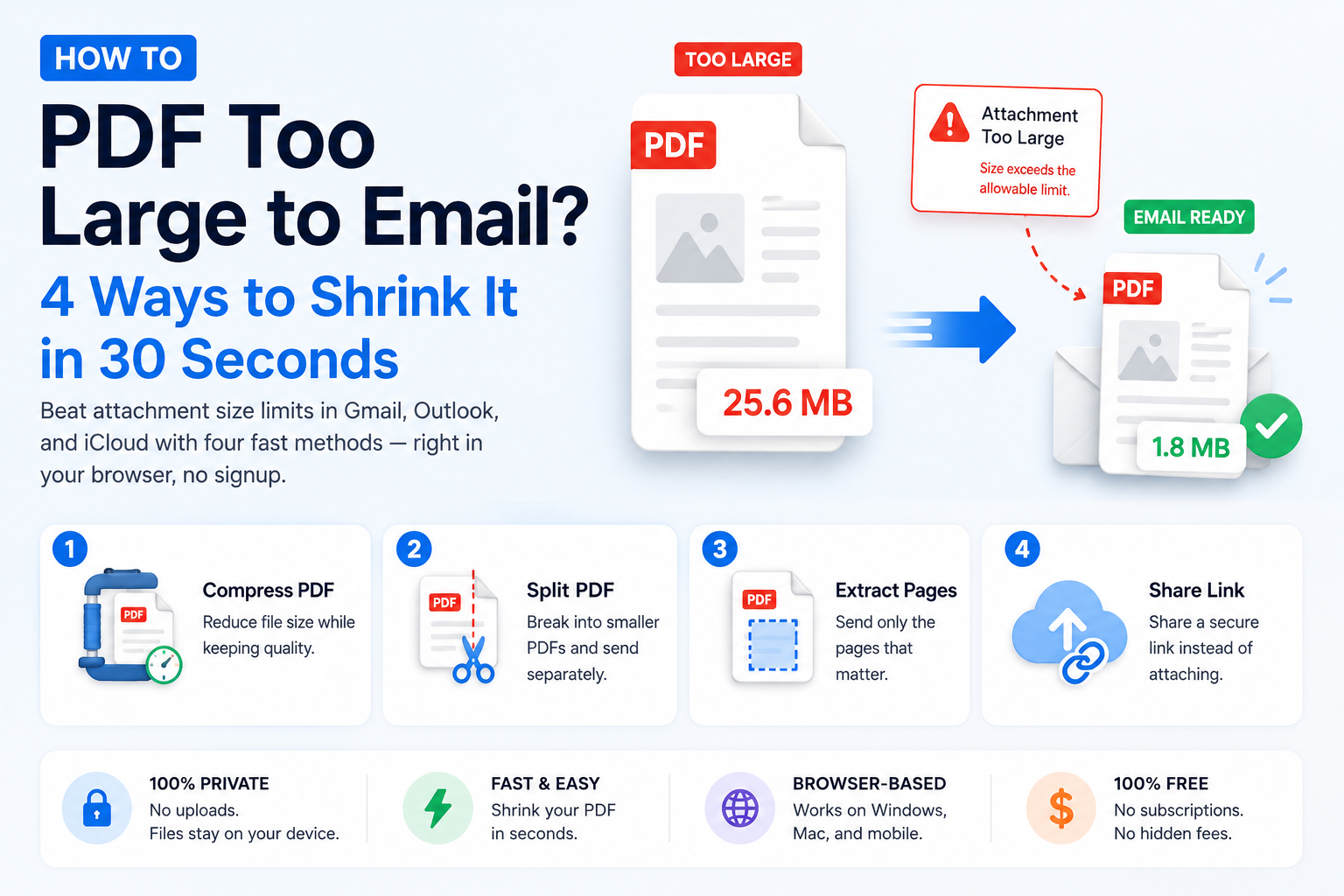
You attach a PDF, hit Send, and Gmail throws it back at you: "Attachment size exceeds the allowable limit." Then Outlook does the same. Then your friend's client's law firm can't receive it either.
If you've ever stared at that error message before an interview deadline, a client submission, or a visa application, you already know this problem doesn't wait. This guide fixes it in under a minute, without installing anything and without uploading your PDF to a stranger's server.
We'll cover exactly what "too large" means for every major email provider, why PDFs balloon in size in the first place, and the four fastest ways to shrink one, ranked from easiest to most nuclear.
If you already know your PDF just needs to be smaller, you can skip the theory:
- Open ToolWayAI's free Compress PDF tool.
- Drop your file in, choose a compression level, and download the smaller version — usually in under 10 seconds.
- Nothing is uploaded to a server. The compression happens inside your browser, so your document never leaves your device.
That's the fast path. If you'd like to understand why your PDF is oversized, which fix suits your situation, and how to keep quality intact, keep reading.
- Need a quick fix? Try the tool
- What "too large to email" actually means
- Why your PDF is so big (the honest reasons)
- Who this problem hits hardest
- The 4 ways to fix it, ranked
- Method 1 — Compress the PDF (the 30-second fix)
- Method 2 — Split the PDF into two emails
- Method 3 — Send only the pages that matter
- Method 4 — Share a link instead of attaching
- Real examples from real inboxes
- Common mistakes to avoid
- Best practices for professional attachments
- Myths vs. facts
- The 30-second checklist
- Frequently asked questions
There is no universal "PDF too big" number. Every email provider draws the line in a slightly different place, and the limit applies to the entire message including all attachments and encoding overhead, not just your PDF's raw size on disk.
| Provider | Attachment limit (per email) | What actually happens when you exceed it |
|---|---|---|
| Gmail | 25 MB | Google offers to upload to Drive and send a link automatically |
| Outlook / Outlook.com | 20 MB | Message is refused, or Microsoft suggests OneDrive |
| iCloud Mail | 20 MB (up to 5 GB via Mail Drop) | Apple uploads to Mail Drop and sends a temporary link |
| Yahoo Mail | 25 MB | Message rejected |
| ProtonMail | 25 MB | Message rejected |
| Corporate email (Exchange, Google Workspace) | Often 10 MB (admin-set) | Bounce with a size-error NDR |
Two things are worth noticing:
- Corporate mail servers are usually stricter than personal ones. A 15 MB resume that sails through Gmail can bounce back from
careers@at a Fortune 500 in seconds. - The number on disk is not the number in transit. Email attachments get base64-encoded, which inflates size by roughly 33%. A 19 MB PDF on disk arrives as about 25 MB in the email. That's why you sometimes hit the limit even though your file "looks" small enough.
The safe target for any professional email: keep the PDF under 10 MB. Under 5 MB is even better.
Almost every oversized PDF suffers from one of five common causes. Knowing which one you have decides which fix is fastest.
- High-resolution scans. A scanner at 600 DPI produces a 20-page PDF that can easily hit 40–80 MB. This is by far the most common cause for resumes, contracts, and government forms.
- Embedded photos at full camera resolution. Modern phones save photos at 12–48 megapixels. Drop three of them into a PDF and you're already past 15 MB before you added any text.
- Uncompressed images. PNG screenshots inside a PDF are typically 3–5× larger than the same image saved as JPEG.
- Embedded fonts. Every custom font your document uses gets baked in. This is usually harmless (adds a few hundred KB), but corporate templates sometimes embed a dozen font variants.
- Redundant thumbnails and hidden layers. Some PDF generators keep a low-resolution preview of every page and never clean it up.
The good news: methods 1 and 3 below fix causes #1, #2, and #3 automatically. You don't need to know which one applied to your file.
If you're reading this, you probably fit one of these:
- Job seekers — LinkedIn Easy Apply caps resumes at 2 MB. Workday and Greenhouse silently reject anything over 5 MB.
- Freelancers and consultants — Invoice bundles, signed contracts, and scanned expenses pile up fast.
- Students — Turnitin, Canvas, and Moodle each set their own upload limits (often 20–40 MB) and instructors get grumpy when you email a 60 MB thesis draft.
- Remote workers and accountants — Quarterly bank statements combined into one PDF hit 30 MB easily.
- Visa and government applicants — USCIS, UK gov, and India's UMANG portals all impose strict per-document size limits, often as low as 2 MB.
- HR teams and recruiters — Candidate offer packages with signed contracts, benefits summaries, and NDA batches get bounced by candidate inboxes.
- Law firms, doctors, and clinics — Case files and medical scans routinely exceed 100 MB and can't legally be dropped into just any cloud service.
- Small business owners — Sending a portfolio, catalogue, or product spec sheet to a prospect fails silently and you never hear back.
If your workflow depends on emailing PDFs, this problem happens to you every few weeks. Getting it right once means you never think about it again.
Ranked from fastest and easiest at the top, to the "escape hatch" at the bottom.
| # | Method | Best when | Time to fix | Keeps the file as one attachment? |
|---|---|---|---|---|
| 1 | Compress the PDF | Any oversized PDF — start here | ~30 seconds | Yes |
| 2 | Split into two smaller PDFs | Compression alone still isn't enough | ~1 minute | No (two emails) |
| 3 | Send only the pages you need | Recipient only needs a section | ~30 seconds | Yes (smaller) |
| 4 | Share a cloud link | File genuinely needs to stay huge (100 MB+) | ~2 minutes | No (link instead) |
Try them in order. In our experience, Method 1 solves about 85% of "too large to email" cases on its own.
Compression re-encodes the images inside your PDF at a smaller size and strips out redundant data. You keep exactly the same pages, the same layout, and the same searchable text — the file just gets smaller.
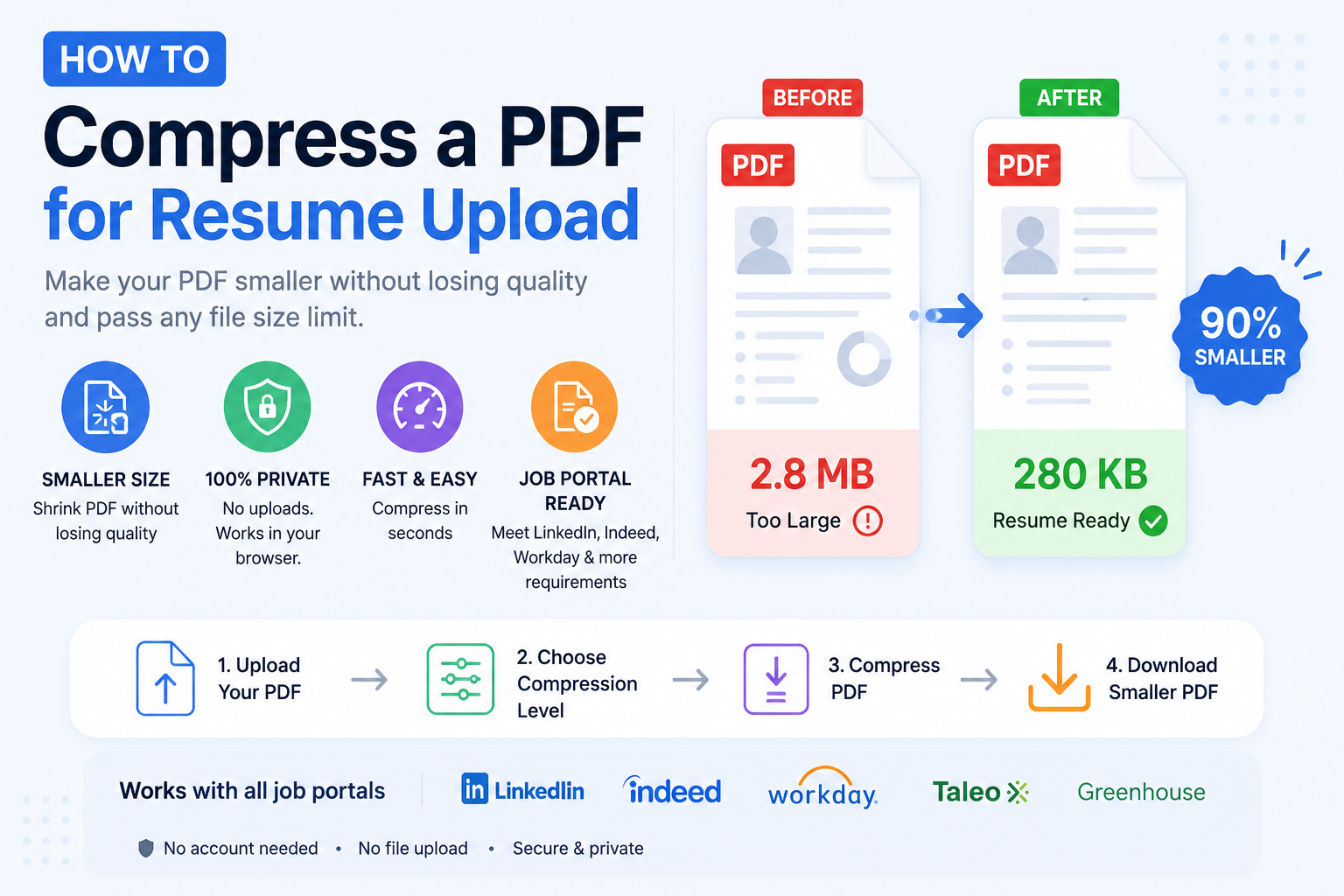
- Open ToolWayAI's free Compress PDF tool.
- Drag your PDF onto the page (or click Choose file).
- Pick a compression level:
- Recommended for emails, resumes, and most documents (best balance of quality and size).
- Strong when you're right at the limit and every megabyte counts.
- Wait a few seconds. Everything happens inside your browser — your PDF never leaves your computer, so nothing gets uploaded to a server.
- Click Download and attach the smaller version to your email.
That's it. Most 30 MB PDFs come out at 3–8 MB with no visible difference in quality.
- ✅ Shrinks scanned documents dramatically (sometimes 80%+).
- ✅ Reduces image-heavy PDFs (portfolios, brochures) by 50–70%.
- ⚠️ Won't help much with PDFs that are already mostly text (a 12 MB legal filing may only drop to 10 MB).
- ⚠️ Very aggressive settings can make small text look slightly softer. Always preview before sending important documents.
| Level | Use for | Typical size reduction |
|---|---|---|
| Recommended | Resumes, invoices, contracts, most emails | 60–75% |
| Strong | Anything under a hard cap (LinkedIn 2 MB, USCIS 6 MB) | 80–90% |
| Light | Files where visual fidelity is critical (photography portfolios) | 30–45% |
If Strong compression doesn't get you under the limit, move to Method 2.
Some documents can't be safely compressed further — a high-court judgment, a technical spec, a scanned identity document. In that case, send them as two emails.
- Open the free Split PDF tool.
- Upload your PDF.
- Split by page count (e.g., "split every 20 pages") or pick exact page ranges (e.g., pages 1–15, 16–30).
- Download the two smaller PDFs.
- Send two emails, labelled "Part 1 of 2" and "Part 2 of 2" in the subject line.
Pro tip: Include a one-line note in Part 2 — "This is the second half of the document I sent 30 seconds ago" — so the recipient doesn't miss it in a busy inbox.
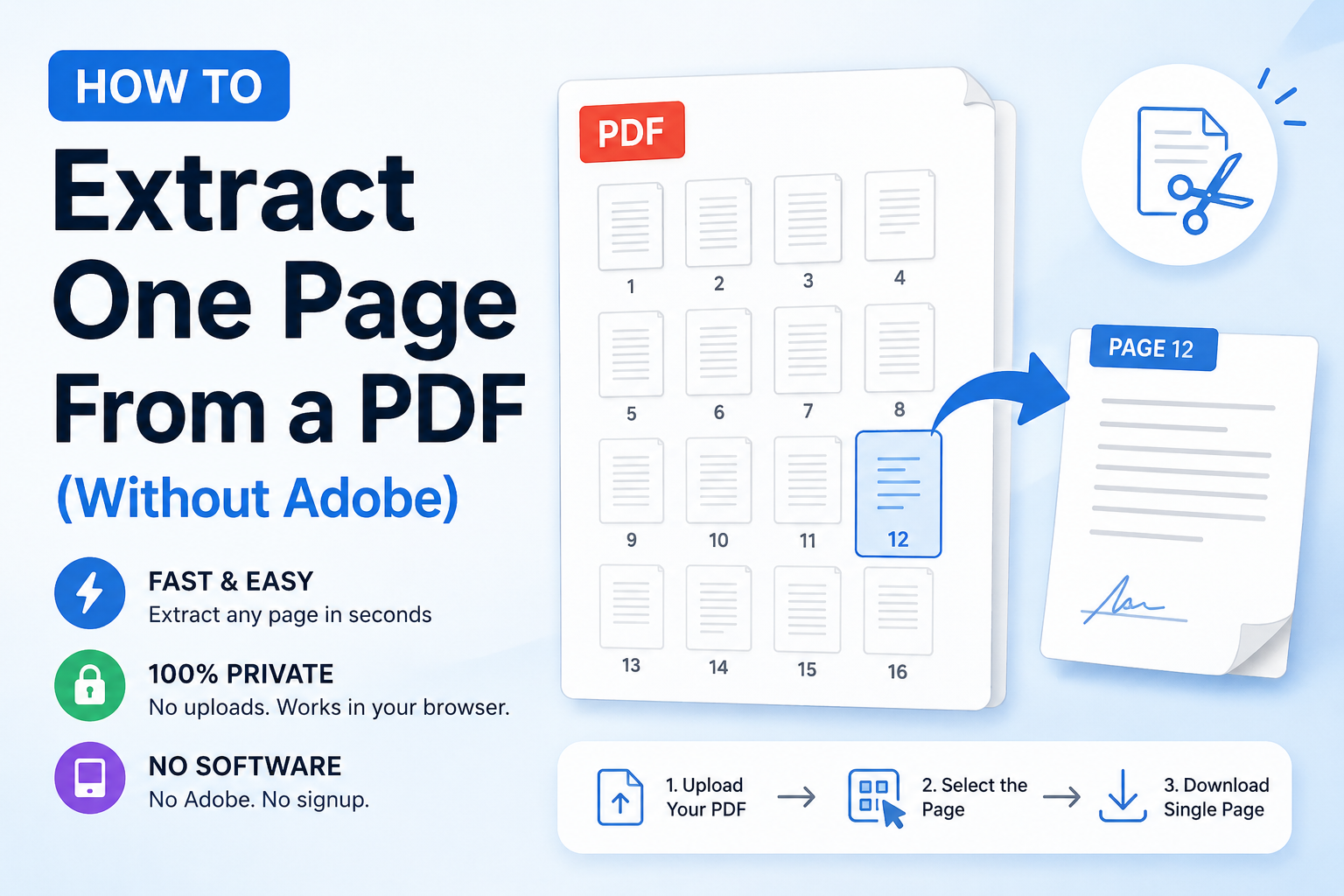
You're not always required to send the entire document. If your recipient only needs pages 3, 4, and 5 of a 40-page report, sending the rest just wastes their bandwidth and yours.
- Open the free Extract PDF Pages tool.
- Upload your PDF.
- Select the page numbers you actually need.
- Download a new PDF containing only those pages.
This is often the most professional option: it shows the recipient exactly what you want them to look at, and it's usually a fraction of the original size.
If your file is genuinely 100+ MB (a video walkthrough, high-resolution architectural drawings, a design portfolio), no amount of compression will make it emailable. In this case, host it and share a link.
Common options:
- Google Drive — Right-click your file → Share → Anyone with the link. Gmail does this automatically when your attachment exceeds 25 MB.
- Dropbox — Same flow, with expiring links on paid plans.
- WeTransfer — Free up to 2 GB per transfer, no account required, links expire in 7 days.
- Your company's secure share (SharePoint, Box) — Preferred for legal, medical, or confidential documents.
If confidentiality matters, always set an expiration date on the link and, where possible, require the recipient to sign in with a specific email address.
Three situations we see over and over, and exactly what we'd do in each:
Situation 1 — Job application with a 12 MB resume.
LinkedIn caps at 2 MB. Compress with the Strong level — resumes usually drop to 300–800 KB with no quality loss. Rename the file Firstname-Lastname-Resume.pdf before uploading. (Recruiters filter their inbox by filename.)
Situation 2 — Accountant emailing a quarter's bank statements (a 38 MB merged PDF). Compress first (drops to about 10 MB). If the client's mail server rejects even that, use Method 3 and split by month.
Situation 3 — Visa applicant hitting a 6 MB per-document limit on USCIS. Compress with Strong level, then double-check each page is still readable in the preview. Government portals reject blurry documents, so verify before you submit.
- ❌ Emailing your only copy without saving the original. Always keep the uncompressed original on your computer. If a recipient can't read something, you'll need to re-compress from scratch.
- ❌ Screenshotting each page and re-saving as PDF. This makes the file larger, not smaller, and destroys the searchable text.
- ❌ Using free "PDF compressor" websites that require signup. Any tool that asks for your email before compressing is monetising your file. Stick to tools that work locally in your browser.
- ❌ Trusting "Print to PDF" at Best Quality. This re-encodes at 300 DPI or higher and often doubles your original file size.
- ❌ Zipping the PDF. PDFs are already compressed internally; zipping saves 1–3% at most and just adds a step for your recipient.
- ❌ Sending link-only when the recipient's IT policy blocks external links. Corporate and government inboxes often strip Drive or Dropbox links. When in doubt, compress and attach.
- Aim for under 5 MB. It clears every provider's limit and won't slow down a mobile inbox.
- Rename the file before sending.
Report.pdfis forgettable;Q3-2025-Sales-Report.pdfis searchable in your recipient's inbox for months. - Preview before you send. Every browser has a built-in PDF viewer. Open your compressed file and scroll through it — never assume.
- Use a browser-based tool for anything confidential. Compression that happens locally means the PDF never leaves your computer. That matters for medical, legal, HR, and financial files.
- Keep the original. Compression is one-way; you cannot rebuild the original from a compressed copy.
| Myth | Fact |
|---|---|
| "Compressing a PDF ruins the text." | Compression targets images, not text. Words stay pixel-perfect and remain searchable. |
| "Any compressor gives the same result." | Different tools use different algorithms. Browser-based tools that process locally are usually just as effective as desktop apps, without the privacy trade-off. |
| "Zipping a PDF makes it smaller." | PDFs use their own internal compression already. Zipping typically saves 1–3%, not the 50%+ people expect. |
| "You need Adobe Acrobat for real compression." | You don't. A modern browser can compress PDFs to the same size using standards-based tools — no license required. |
| "Compressed PDFs can't be printed cleanly." | They print fine at normal document quality. Only extreme compression settings ever cause visible degradation. |
Before you hit Send, run through this quickly:
- File is under the recipient's known limit (5 MB is a safe default).
- Filename is descriptive and professional.
- You've opened the compressed file and scrolled every page.
- You still have the uncompressed original saved locally.
- The subject line mentions the attachment.
- For multi-part sends: "Part 1 of 2" is in the subject.
The safe upper bound for personal email is 10 MB. For corporate or government email, aim for 5 MB or less. Base64 encoding inflates attachments by ~33% in transit, which is why a "19 MB" PDF often fails a 25 MB limit.
Not at recommended settings. Compression targets embedded images and redundant data, not text. For most documents — resumes, invoices, contracts — you can shrink a PDF by 60–80% with no visible difference.
It depends on the tool. Tools that upload your file to a server carry privacy risk. ToolWayAI's Compress PDF processes everything inside your browser — your file is never uploaded anywhere, so there's nothing to leak.
Usually one of three reasons: (1) the PDF was mostly text to begin with, so there's little to compress; (2) the compression level was set too gently — try Strong; or (3) the file contains embedded video or 3D content, which needs to be removed manually.
Most tools require you to remove the password first, since compression has to read the file's contents. Save an unlocked copy, compress it, then re-add the password if needed.
Gmail automatically offers to upload the file to your Google Drive and send it as a share link. That works, but the recipient must click through — some corporate email filters strip these links. Compressing first is more reliable.
No. "Print to PDF" re-renders the document at the printer's chosen resolution, which is often higher than the original. It almost always makes the file larger, not smaller.
Merging combines two PDFs and their file sizes add up. Splitting divides one PDF into smaller PDFs — the pieces add up to roughly the original size, minus a tiny bit of shared overhead. Neither operation is a substitute for compression.
Use your firm's or clinic's secure sharing platform if one exists (SharePoint, Box, a client portal). If not, compress the PDF and, if it's still too large, use a link-share service that supports expiring links and password protection — never a public link.
Technically no, but compression is not lossless — each pass discards a little more image quality. Compressing once is usually enough. Compressing three or four times will produce a small, blurry file.
No. Browser-based tools like ToolWayAI's Compress PDF work entirely in the browser — no downloads, no accounts, no plug-ins. Everything happens on your device.
Yes. Compression preserves the document structure, so signature fields, form inputs, and metadata all stay intact.
A quick note on the tool we recommended in this article, so you know why we point people to it:
- Runs in your browser. Compression happens locally on your device — the PDF is never uploaded to a server, which matters for confidential documents.
- Free with no account. No signup, no email, no watermark on the output.
- No installation. Works instantly in any modern browser on desktop or mobile.
- Beginner-friendly. One drag-and-drop, one level selector, one download button.
- Handles the most common causes automatically. Aggressive image re-encoding, EXIF cleanup, and thumbnail removal happen without you having to configure anything.
That's it — no aggressive pitch, no upsell.
If your PDF is too large to email:
- Compress it first — solves ~85% of cases in 30 seconds using Compress PDF.
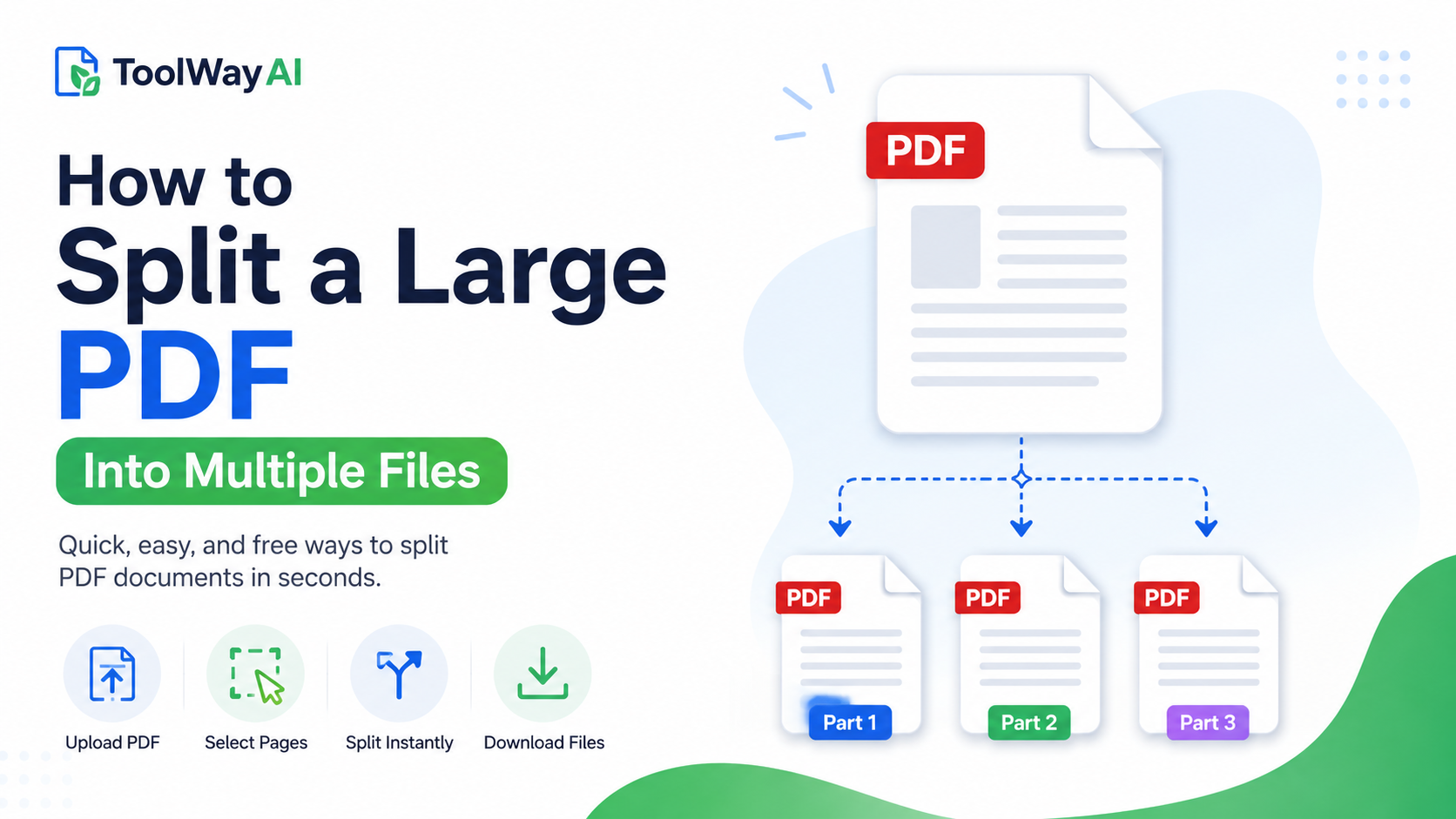
- Split it into two smaller files with Split PDF if it's still too big.
- Extract only the pages you actually need with Extract PDF Pages.
- Share a link through Drive, Dropbox, or WeTransfer when the file is genuinely huge.
The first three steps all happen in your browser, without an account, and without your PDF ever being uploaded to someone else's server. That's the fastest, safest, and cheapest way to get your document into the recipient's inbox — the first time you hit Send.
- Try next: Split PDF — when compression alone can't get your file under the limit, split it into smaller chunks in seconds.
- Try next: Extract PDF Pages — often the fastest fix is to send only the pages your recipient actually needs.
- Read next: Merge PDF — the companion tool for combining PDFs cleanly after you've compressed the parts.
- Go deeper: Best AI Tools for Small Businesses — if you handle PDFs daily for a small business, this roundup covers the wider productivity stack that pairs well with our free file tools.
Bookmark the Compress PDF tool for the next time your inbox rejects an attachment — you'll only need it once to remember it.
FAQs
The safe upper bound for personal email is 10 MB. For corporate or government email, aim for 5 MB or less. Base64 encoding inflates attachments by ~33% in transit, which is why a '19 MB' PDF often fails a 25 MB limit.
Not at recommended settings. Compression targets embedded images and redundant data, not text. For most documents you can shrink a PDF by 60–80% with no visible difference.
It depends on the tool. ToolWayAI's Compress PDF processes everything inside your browser — your file is never uploaded to a server, so there's nothing to leak.
Usually the PDF was mostly text to begin with, the compression level was set too gently (try Strong), or the file contains embedded video or 3D content.
Most tools require you to remove the password first, since compression has to read the file's contents. Unlock, compress, then re-lock if needed.
Gmail offers to upload the file to Drive and send a share link. Corporate email filters sometimes strip these links, so compressing first is more reliable.
No. Print to PDF re-renders at the printer's chosen resolution, which is often higher than the original, and almost always makes the file larger.
Merging adds file sizes together. Splitting divides one PDF into smaller PDFs whose pieces add up to roughly the original size. Neither replaces compression.
Use your firm's secure sharing platform if one exists. Otherwise, compress the PDF and, if it's still too large, use a link-share service that supports expiring links and password protection — never a public link.
No. Browser-based tools work entirely in the browser — no downloads, no accounts, no plug-ins. Everything happens on your device.
Yes. Compression preserves the document structure, so signature fields, form inputs, and metadata all stay intact.