Reading time: 12–15 minutes
Large PDF files are useful when you want to keep everything in one document, but they're not always practical. A 200-page report, a scanned contract, or a large eBook can quickly become difficult to email, upload, print, or share with other people.
Instead of sending an entire document, you can split a PDF into smaller files. This makes your documents easier to organize, faster to upload, and simpler for the recipient to read.
The good news is that you don't need expensive software like Adobe Acrobat to do it. With ToolWayAI's free Split PDF tool, you can split PDF files directly in your browser without installing anything or creating an account.
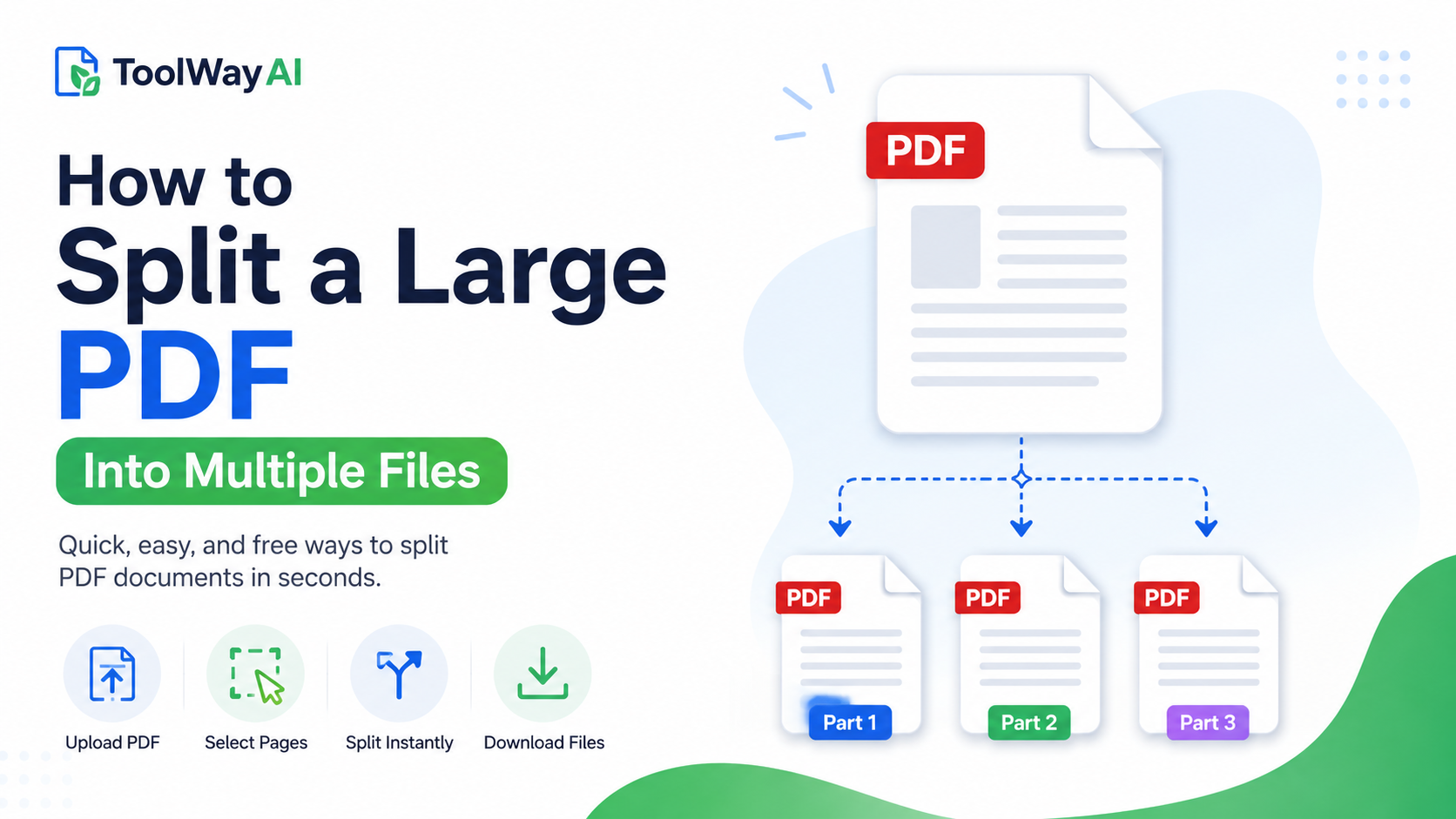
If you're already holding a large PDF and simply want to split it:
- Open ToolWayAI Split PDF.
- Upload your PDF.
- Select the pages you want.
- Download the new PDF instantly.
Everything happens in your browser, making it fast and easy for most everyday documents.
- Why split a PDF?
- When should you split a PDF?
- Common situations where splitting PDFs helps
- How to split a PDF step by step
- Different ways to split PDFs
- Common mistakes
- Best practices
- Frequently asked questions
- Why use ToolWayAI?
- Continue learning
Many people think of PDFs as documents that should always remain together. In reality, there are many situations where separating pages makes far more sense.
For example:
- You only need one signed page from a contract.
- Your university only wants one chapter.
- A government website limits upload size.
- You only need the invoice instead of the entire report.
- A customer only needs a receipt instead of the whole document.
Splitting a PDF keeps your workflow cleaner while reducing upload time and making files easier to manage.
Here are some of the most common situations where splitting PDFs saves time.
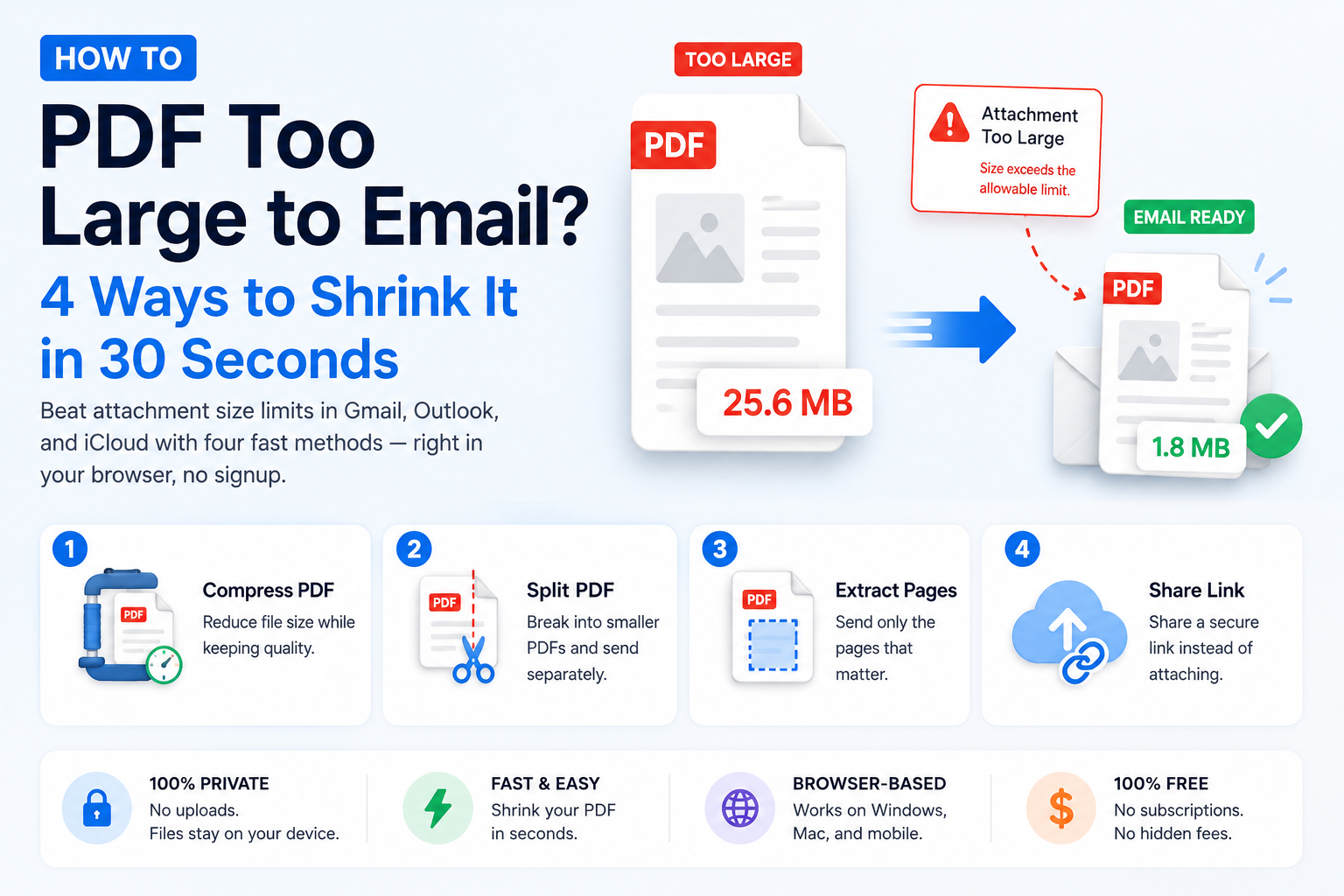
Many email providers limit attachment sizes.
Instead of compressing everything, splitting a document into two or three smaller PDFs often solves the problem immediately.
Example:
Instead of sending one 40-page PDF, send:
- Pages 1–15
- Pages 16–30
- Pages 31–40
The recipient can download only the section they need.
Recruiters often request:
- Resume
- Cover Letter
- Certificates
If everything is scanned into one PDF, split it into separate files before uploading.
This looks more professional and makes reviewing your documents easier.
Many immigration, passport, tax, and visa portals ask applicants to upload each document separately.
For example:
- Passport
- Bank statement
- Identity proof
- Address proof
Instead of uploading one combined document, split each section into its own PDF.
Teachers rarely need an entire textbook.
If your assignment only requires Chapter 5, extract or split only those pages before uploading.
This saves upload time for both students and teachers.
Businesses frequently split PDFs to separate:
- Contracts
- Purchase orders
- Invoices
- Delivery notes
- Receipts
Rather than searching through hundreds of pages every time, keeping smaller documents improves organization.
A lawyer receives a 180-page case file.
The court only requests pages 42–55.
Instead of emailing the entire document, the lawyer creates a new PDF containing only those pages.
A student downloads lecture notes containing 12 chapters.
Only Chapter 8 is required for revision.
Splitting the PDF creates a much smaller study guide.
A freelancer scans twelve invoices into one document.
Each client should only receive their own invoice.
Splitting the PDF avoids accidentally sharing another client's information.
The process is simple.
Open ToolWayAI's Split PDF tool.
Upload your PDF.
Wait a few seconds while the pages load.
Choose the pages you want to keep together.
For example:
- Pages 1–10
- Pages 11–20
- Pages 21–35
or select individual pages.
Generate the new PDF.
Download the finished document.
The original PDF remains unchanged.
Not every situation requires the same approach. Understanding the different ways to split PDFs helps you choose the best option.
This is the most common method.
Example:
- Pages 1–10
- Pages 11–20
- Pages 21–30
Perfect for:
- Reports
- Books
- Training manuals
- Research papers
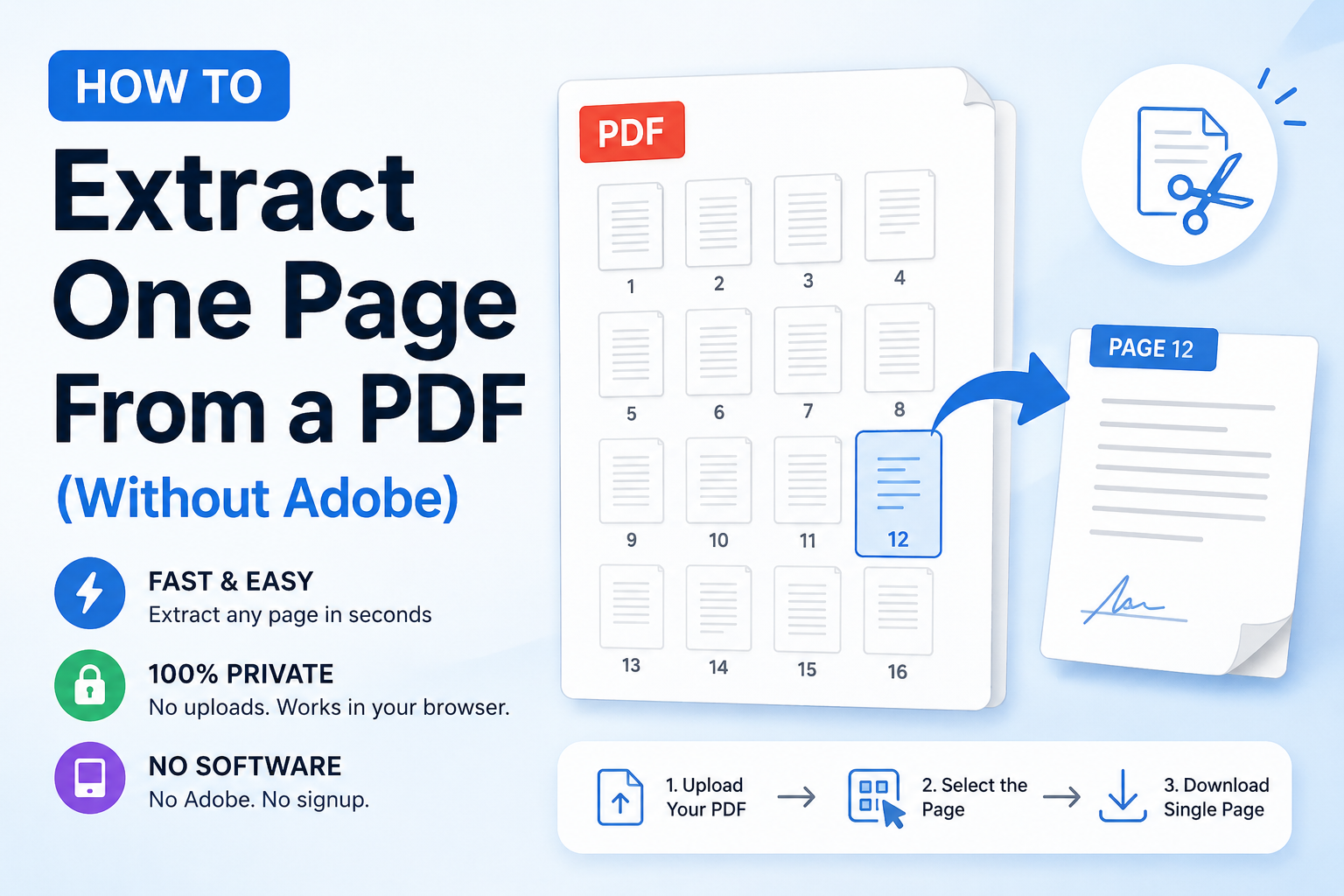
Sometimes you only need one page.
For example:
- A signed contract page
- One certificate
- One invoice
- One receipt
Instead of creating multiple files, you can create a new PDF containing only that page.
This creates one PDF for every page.
Useful when:
- Scanning paperwork
- Organizing receipts
- Separating invoices
- Archiving documents
Large documents can also be divided evenly.
For example:
A 100-page report becomes:
- PDF 1 (Pages 1–25)
- PDF 2 (Pages 26–50)
- PDF 3 (Pages 51–75)
- PDF 4 (Pages 76–100)
This is useful when multiple people need to review different sections.
Splitting PDFs isn't just about making files smaller.
It improves the entire workflow.
Large PDFs take longer to upload.
Smaller documents finish much faster, especially on slower internet connections.
Instead of sending one huge document, you send only what's necessary.
Recipients appreciate receiving relevant information instead of hundreds of unnecessary pages.
Imagine storing documents like this:
Invoices.pdf
versus
January Invoice.pdf
February Invoice.pdf
March Invoice.pdf
The second option is much easier to manage.
Suppose your PDF contains:
- Passport
- Bank statement
- Employment letter
If someone only needs your employment letter, don't send the other documents.
Splitting reduces accidental sharing of personal information.
While splitting doesn't always reduce the total file size, it lets you keep only the pages you actually need.
Deleting unnecessary pages often saves storage space over time.
Many people unknowingly create problems while splitting PDFs.
Some people open a PDF and take screenshots.
Problems:
- Lower quality
- Larger images
- Text becomes harder to search
- Difficult to print
Always split the original PDF instead.
Another common mistake is printing selected pages to a new PDF.
Although it works, it often:
- Removes bookmarks
- Changes formatting
- Increases file size
- Takes longer
Direct page extraction is usually cleaner.
Many people split the PDF...
...then accidentally email the original file.
Always double-check the attachment before sending.
Avoid names like:
Document1.pdf
Better:
Invoice-April-2026.pdf

Passport.pdf

Chapter-6.pdf
Good filenames make documents much easier to find later.
Creating 50 tiny PDFs may create unnecessary confusion.
Split only when it makes sense.
Think about how the recipient will use the files.
If pages belong together, don't separate them.
For example:
- Invoice + Receipt
- Application Form + Signature Page
- Contract + Terms
Before downloading:
- Check page order
- Confirm page numbers
- Ensure nothing important is missing
Taking 20 seconds now can prevent problems later.
Never delete your original PDF.
Create copies for sharing while keeping the original safely stored.
Examples:
Employment Certificate.pdf

Resume.pdf

Project Proposal.pdf

Tax Return 2025.pdf
Clear names help both you and the recipient.
Sometimes the new PDF is still large.
After splitting, you can use ToolWayAI's Compress PDF tool to reduce file size even further before sending.
These three actions are often confused.
| Need | Best Tool |
|---|---|
| Keep only certain pages | Split PDF |
| Save a single page | Extract Pages |
| Reduce file size | Compress PDF |
| Combine multiple PDFs | Merge PDF |
Choosing the correct tool saves time and produces better results.
Yes.
Splitting a PDF does not modify the original document.
Instead, it creates a new PDF based on the pages you choose.
As long as you're using a trusted browser-based tool, the process is straightforward and preserves your original file.
Yes. You don't need Adobe Acrobat to split a PDF. Modern browser-based PDF tools allow you to separate pages without installing desktop software. For everyday tasks such as school assignments, invoices, reports, and personal documents, a browser tool is often the fastest option.
Not necessarily.
Splitting creates smaller individual PDF files, but the combined size of all the new PDFs may be similar to the original file.
If your goal is reducing storage space or meeting upload limits, use a PDF compression tool after splitting.
No.
The original PDF remains unchanged. Splitting creates one or more new PDF files while leaving the source document intact.
That depends on the permissions of the PDF.
Some protected PDFs prevent editing or page extraction. If you own the document, remove the protection first (if permitted) before splitting it.
Yes.
Scanned PDFs can usually be split just like regular PDFs because splitting works at the page level.
This depends on the tool and your device. Larger PDFs naturally require more processing time and memory.
Yes.
Most modern PDF tools work on:
- Android
- iPhone
- iPad
- Tablets
as long as you have a modern web browser.
For confidential documents, choose tools that process files locally in your browser whenever possible.
Avoid uploading highly sensitive documents to unknown websites.
Absolutely.
If you later decide those files belong together again, you can use ToolWayAI's Merge PDF tool to combine them.
Use Split PDF when you want multiple new documents.
Use Extract Pages when you only need one or a few specific pages.
There are many PDF tools available online, but ToolWayAI is designed to make everyday document tasks simple and accessible.
With ToolWayAI you can:
- Split large PDF documents in seconds
- Work directly from your browser
- Avoid installing desktop software
- Organize documents more efficiently
- Quickly prepare files for email, job applications, government portals, and school assignments
Our goal is to provide practical tools that solve real problems without unnecessary complexity.
Whether you're a student, professional, freelancer, teacher, or business owner, splitting PDFs should be quick, simple, and frustration-free.
Splitting a large PDF is one of the easiest ways to organize documents, improve sharing, and meet upload requirements.
Instead of sending an entire file, you can provide only the pages someone actually needs.
This helps you:
- Share documents faster
- Stay organized
- Protect private information
- Meet file upload requirements
- Improve collaboration
For most people, splitting a PDF takes less than a minute and can save a great deal of time compared to editing or recreating documents manually.
You may also find these guides useful:
How to Extract One Page From a PDF (Without Adobe) — when you only need one or two pages instead of multiple sections.
How to Merge PDFs Without Adobe Acrobat — combine multiple PDF documents into one organized file.
PDF Too Large to Email? 4 Ways to Shrink It in 30 Seconds — reduce file size before sharing.
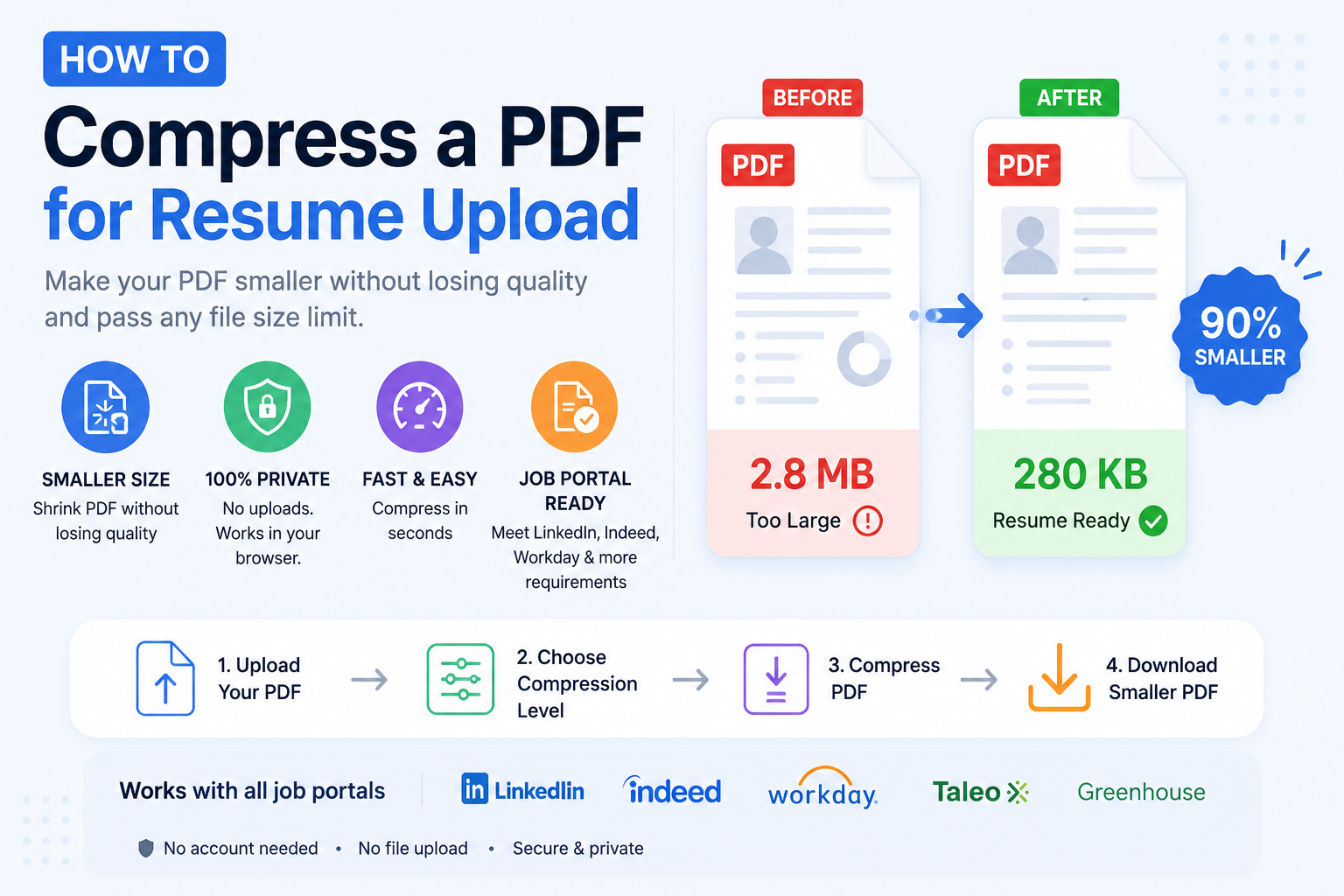
How to Compress a PDF for Resume Upload — meet file size limits on LinkedIn, Indeed, Workday, and other job portals.
Before downloading your new files, make sure you have:
- ✅ Selected the correct page ranges
- ✅ Checked that page order is correct
- ✅ Verified no important pages are missing
- ✅ Given each file a clear and descriptive name
- ✅ Compressed the files if necessary for email or uploads
- ✅ Kept the original PDF as a backup
Following these simple steps helps ensure your PDFs stay organized, professional, and ready for sharing.
End of Article