You've got a 40-page PDF and you only need to send page 12 — the invoice, the signed page, the exam admit card, the specific clause your client asked about. Attaching the whole file feels sloppy and wastes everyone's time.
The good news: pulling out a single page from a PDF is one of the fastest operations in existence. It takes about five seconds in a browser, requires no Adobe subscription, no signup, and no upload to a stranger's server. This guide walks through the fastest way to do it, when to extract vs. split, and the little mistakes that turn a clean one-page export into a broken file.
If you already know which page you want:
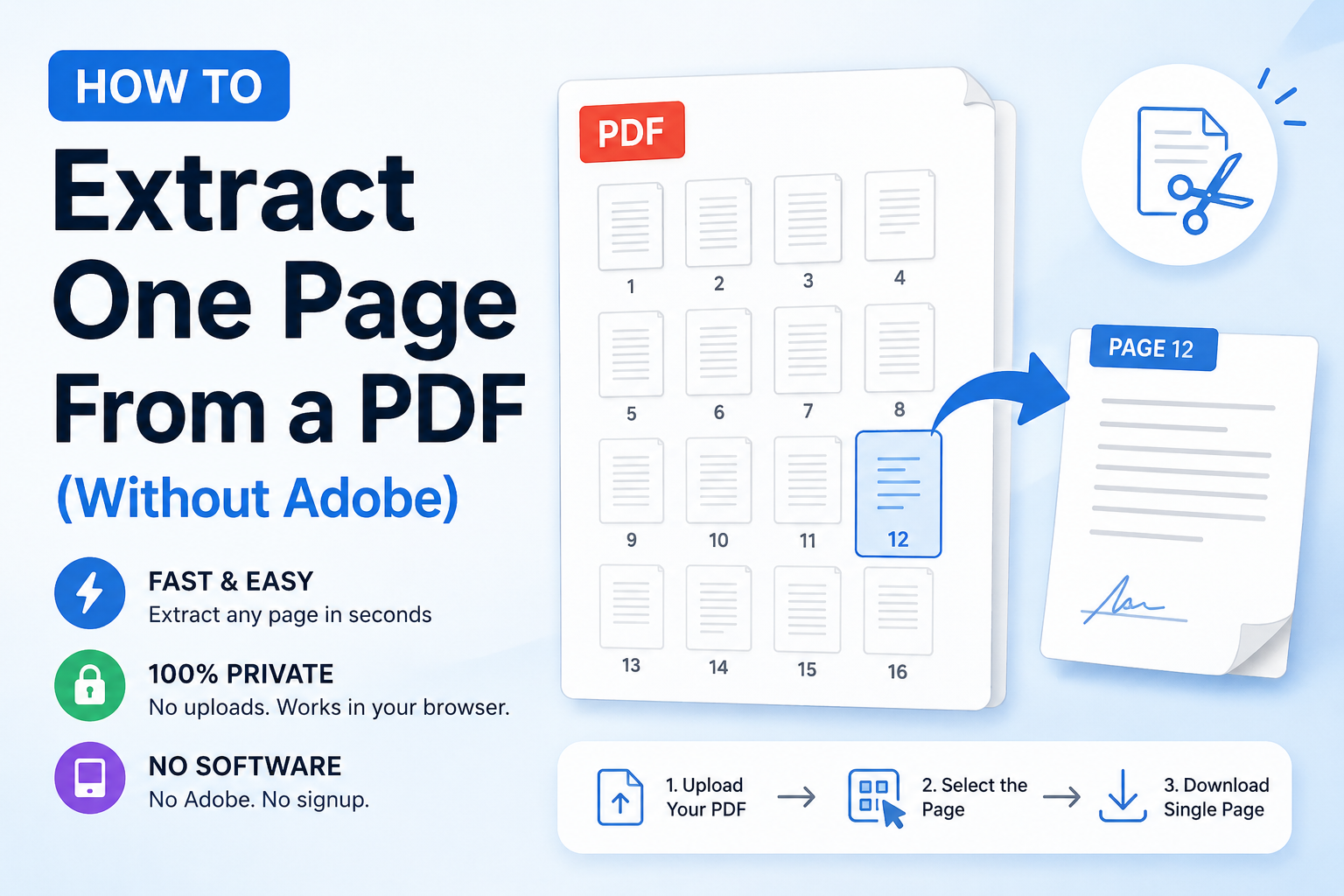
- Open ToolWayAI's free Extract PDF Pages tool.
- Drag your PDF in, click the page you want (or type its number), and download.
- Everything happens inside your browser — the PDF is never uploaded to a server, which matters when the file contains contracts, ID scans, or financial records.
That's the whole flow. Keep reading if you want to know the difference between extracting and splitting, how to keep signatures intact, and how to pick just the pages you need from a very large document.
- Need a quick fix? Try the tool
- What "extracting one page" really means
- Extract vs. split vs. delete: which do you need?
- Who extracts single pages (and when)
- Step-by-step: extract one page in your browser
- Real-world extraction scenarios
- Common mistakes to avoid
- Best practices for professional extracted PDFs
- Myths vs. facts about extracting pages
- The pre-send checklist
- Frequently asked questions
- Why ToolWayAI for this
- Summary
- Continue learning
Extracting a page is the operation of taking a specific page (or a few specific pages) out of a larger PDF and saving them as a brand-new, smaller PDF. The original file stays untouched.
Concretely, when you extract page 12 from a 40-page PDF:
- The original 40-page file is not modified in any way.
- A new PDF is created containing only page 12.
- That page keeps its exact layout, fonts, images, hyperlinks, form fields, and signatures.
- The new file is much smaller than the original — often 90% smaller for a text-only page.
You end up with two PDFs on your computer: the original (unchanged) and a new one-page file you can email, upload, or archive.
These three operations get confused all the time. Here's the honest distinction.
| Operation | What it produces | When to use it |
|---|---|---|
| Extract | One new PDF containing only the pages you picked. Original untouched. | You need to send or keep a specific page (or a specific selection). |
| Split | Multiple new PDFs, one per chunk (per page, per range, or by count). Original untouched. | You need to break a big PDF into pieces (chapter by chapter, month by month). |
| Delete pages | The same PDF, now with certain pages removed. Original is replaced. | You want to shrink a document by dropping unneeded sections while keeping the rest intact. |
Most "I only need page 12" tasks are extraction, not deletion. Extract keeps the source file safe, which is what you almost always want when you're dealing with contracts, statements, and legal documents.
If you find yourself asking "how do I remove pages 40–50 but keep 1–39?", that's technically a delete — but you can achieve the same result by extracting pages 1–39 into a new file. Extracting is safer because the original is preserved.
Common cases we see every week:
- Job seekers — sending only the signed offer letter page from a 20-page onboarding pack to a background-check vendor.
- Renters and buyers — pulling out the specific bank statement page a landlord asked for, without disclosing three months of unrelated transactions.
- Freelancers — sending clients the invoice page from an accounting statement, not the whole ledger.
- Students — extracting a single reference page or a chart from a textbook PDF to include in a citation or assignment.
- Lawyers and paralegals — isolating one specific exhibit from a giant case-file PDF for a court filing.
- HR and recruiters — sharing only the offer terms page (not the entire contract template) with a candidate for review.
- Government applicants — many visa portals demand each supporting document as a separate PDF. Extraction is how you turn a scanned booklet into single-document uploads.
- Doctors and clinics — sending a single lab result page from a full medical record to a specialist for a referral.
- Journalists and researchers — pulling out a specific interview transcript page from a longer collated report.
If your job involves selectively sharing documents, extraction is the tool you'll reach for most often.
- Open the tool. Go to Extract PDF Pages. No signup, no download.
- Drag your PDF onto the page. You can also click to browse. The file is never uploaded — everything runs on your device.
- Pick the page you want. Click its thumbnail, or type the page number directly. You can select multiple pages if you need more than one.
- Optionally rename the output to something descriptive like
Invoice-March-2026.pdf. - Click Extract & Download. The new file downloads immediately.
- Open the extracted file and verify: right page, right content, layout looks correct.
- Send or upload. The extracted file is small enough for any email limit or portal.
Total time for a two-second selection and a five-second export: under 15 seconds, even for a 500-page source file.
Scenario 1 — Send the invoice page from an accounting statement.
Your accountant sent a 12-page monthly statement. You need to forward only the invoice (page 3) to a client. Extract page 3, rename to Invoice-2026-03.pdf, send. The client sees the invoice, not your other transactions.
Scenario 2 — Bank statement for a rental application, one page only. Your landlord asked for "your latest salary credit page". Extract that one page from the full statement. This also protects your privacy — no need to disclose three months of unrelated activity.
Scenario 3 — One exhibit from a court file bundle. A 250-page case-file PDF contains an important exhibit on page 87. Extract that one page for a filing without shipping the whole bundle. The extracted file preserves the original page's exact layout and any signatures.
Scenario 4 — A single reference page from a textbook PDF.
A student needs to cite exactly one figure from a 400-page textbook PDF. Extract that page, save with a clear filename like Textbook-Ch4-Figure-2.pdf, attach to the assignment.
Scenario 5 — Isolate the signed page of a contract. An eight-page contract, only page 7 has the signatures. Extract page 7 to send back to counter-signers, or to keep as a verification copy alongside the original.
Scenario 6 — Government portal wants each document separately. You have a scanned booklet with your ID, address proof, and income proof as three pages of one PDF. The portal wants three separate PDFs. Extract each page individually — one at a time — and upload three files.
Scenario 7 — Pull a specific chart from a long report. You need one chart from page 42 of an 80-page annual report for a slide deck. Extract page 42, or if you only need the chart as an image, take a screenshot of the extracted page.
- ❌ Deleting pages from the original instead of extracting. If you delete pages 1–11 and 13–40 to "keep only page 12", you've destroyed the source. Extract instead. The source stays safe.
- ❌ Extracting a page from a scanned PDF and expecting it to be searchable. If the source PDF was scanned without OCR, the extracted page is still an image. Run OCR on the source before extracting if searchable text matters.
- ❌ Picking the wrong page because the PDF's page numbers don't match the file's page indices. Many PDFs have a cover page, then start numbering from "Page 1" on the second page. The extraction tool counts by file position, not by the number printed on the page. Preview thumbnails to avoid this.
- ❌ Sharing an extracted page that still has header text like "Confidential — do not distribute". Extraction preserves the source's headers and footers. Read the page you're about to send.
- ❌ Extracting a page from a password-protected PDF. Most tools refuse. Unlock first, extract, and re-lock if you need to preserve the original's security.
- ❌ Uploading a personal document to a random web extractor. Extracted or not, contracts, IDs, and financial documents belong to you. Use a tool that processes locally in your browser.
- ❌ Forgetting to rename.
page-12.pdfis meaningless in a recipient's inbox. Take three seconds.
- Extract, don't delete, when in doubt. Extraction preserves the original; deletion doesn't. If you ever need the full document again, you'll be glad you extracted.
- Rename the output with a clear filename that describes the content, not the page number:
Invoice-ACME-2026-03.pdf, notpage-3.pdf. - Always verify before sending. Open the extracted file. Zoom in. Make sure the page shows what you expected.
- Check the headers and footers. Confidential watermarks, "Draft" stamps, and page-numbering footers all come along with the extracted page. Remove or redact them if the file will be shared externally.
- Extract locally. For contracts, medical records, IDs, and any document with your PII on it, choose a tool that never uploads. Your file should stay on your device.
- Keep the source file in the same folder as the extracted one, at least until the extraction has been received and confirmed.
| Myth | Fact |
|---|---|
| "Extracting a page destroys the original." | It doesn't. Extraction creates a new file. The source PDF is untouched. |
| "Extraction changes the page's quality." | It doesn't. The extracted page is a bit-for-bit copy of the source page. |
| "You need Adobe Acrobat to extract pages." | You don't. Any modern browser can do it locally, with no subscription. |
| "Extracted pages lose their signatures." | They don't. Signatures live inside individual pages, so the extracted page keeps them intact. |
| "Extraction is the same as splitting." | It isn't. Extract = one new file with the pages you picked. Split = multiple new files, one per chunk. |
| "You can't extract from a scanned PDF." | You can. The extracted page is still an image of the original scan; nothing about extraction requires OCR. |
| "Extracted pages can't be edited later." | They can. Any PDF editor still opens the extracted file. Extraction doesn't lock or flatten anything. |
Before you email or upload the extracted page:
- You selected the correct page (verified by thumbnail, not just page number)
- You've opened the extracted file and confirmed the content
- Filename is descriptive: names the content, not just the page number
- No confidential watermark or "Draft" header remains
- The extracted file is under the recipient's likely limit (usually well under, since one page is tiny)
- The source PDF is still saved locally for your own records
- Any signatures on the extracted page look intact (if applicable)
Open a browser-based tool like ToolWayAI's Extract PDF Pages, drop your PDF in, click the page you want, and download it. The whole process takes about 15 seconds.
No. Extraction creates a new PDF containing only the pages you selected. The original file stays exactly as it was.
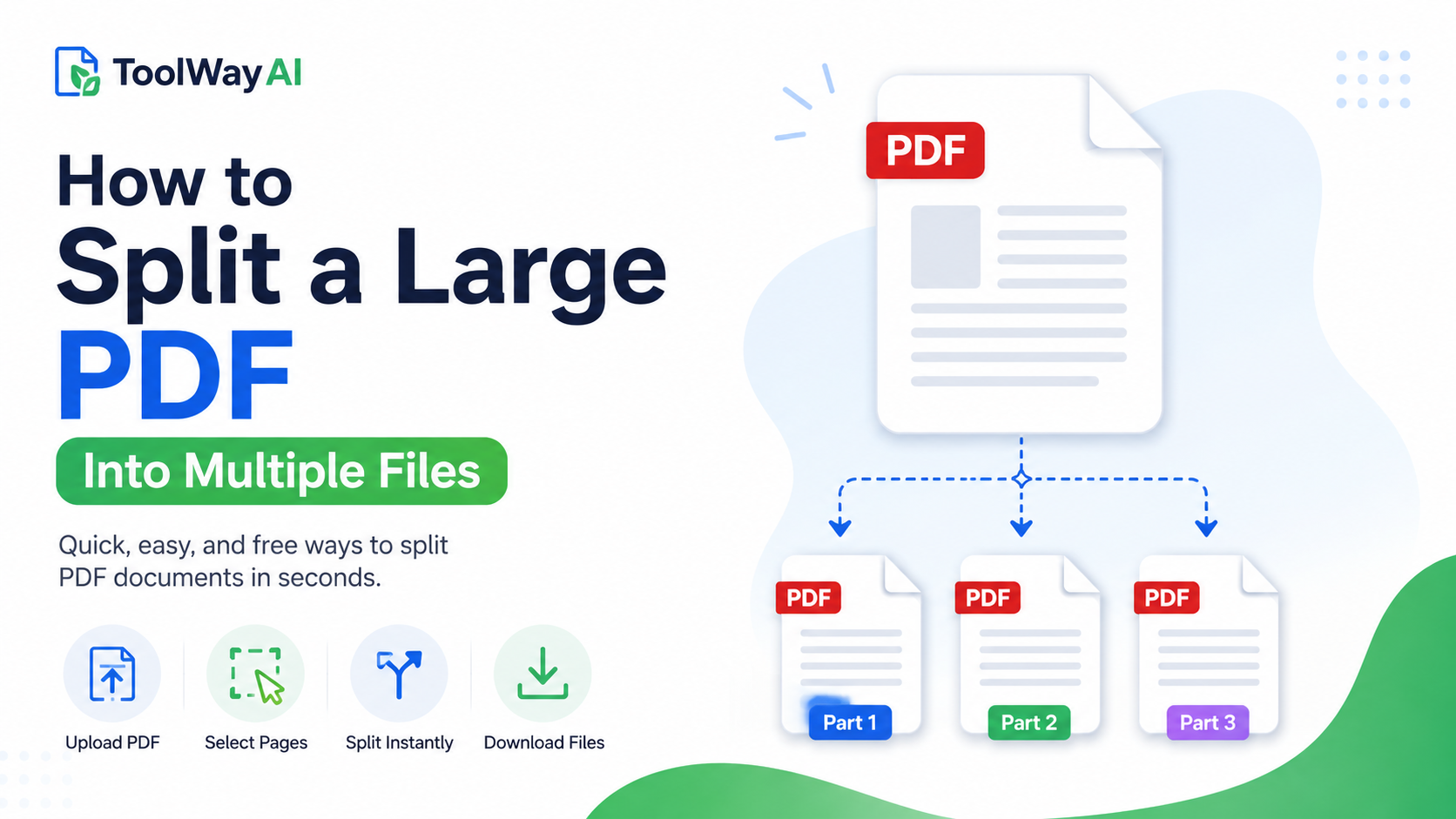
Extracting gives you one new PDF with the specific pages you chose. Splitting gives you multiple new PDFs, each containing a chunk of the original (per page, per range, or by count). Use extract for "I only want page 12"; use split for "break this into chapters".
Yes. Select page 3, page 7, and page 12 — the extraction combines them into a single new PDF, in the order you selected. This is common for extracting only the signed pages from a long contract.
Yes. Signatures live inside individual pages, so extraction preserves them exactly. A signed page extracted from a signed contract is still validly signed.
Yes. The extracted page is still an image of the scan — nothing about extraction requires OCR. If you need the text searchable, run OCR before extracting.
It depends on the tool. Any extractor that uploads your file to a server carries privacy risk, especially for financial or medical documents. Use a browser-based tool that processes locally.
Most tools require you to unlock the file first. Save an unlocked copy, extract the page you need, then re-lock the original if you want to preserve its protection.
Very large PDFs (500 MB+) can strain browser memory on older devices. If you hit that limit, either use Split PDF to break it into smaller pieces first, or open on a more powerful device.
Not from a reputable tool. Free extractors that add watermarks are usually trying to sell you a "pro" upgrade to remove them. ToolWayAI's extractor does not add watermarks.
Yes. Browser-based PDF tools work in mobile Safari and Chrome. The interface is a little smaller, but the extraction itself is identical.
It reduces the file size dramatically (one page is much smaller than 40 pages), but it doesn't compress the content of the page. If the extracted single page is still too large, run it through Compress PDF.
A screenshot creates an image of the page (no selectable text, no working hyperlinks). Extraction creates a real PDF page that keeps all the original's structure, searchability, and functionality. For sending documents, always extract.
Yes. Type 5-8 (or select pages 5, 6, 7, 8) in the tool. The extraction produces one new PDF containing exactly those four pages in order.
A word on the tool we recommend, so you know why we point people there:
- Runs entirely in your browser. Your PDF never leaves your device. That matters when the source is a bank statement, medical record, or signed contract.
- Free with no account. No signup, no email address, no watermark on the output.
- No installation. Works on any modern browser, desktop or mobile.
- Thumbnail previews. You see every page and click the ones you want — no guessing at page numbers.
- Multi-page selection. Extract page 3 alone, or pages 3, 7, and 12 together. One click for each.
- Pairs cleanly with the other free tools. Extracted file too big? Send it to Compress PDF. Need to combine extracts from different files? Send them to Merge PDF.
We built the free tools so that "send me only page 12" doesn't require anyone to buy a subscription.
- Extracting a page creates a new PDF; the original stays untouched. Almost always the safer choice over deleting pages.
- The fastest way is a browser-based tool: Extract PDF Pages does it in about 15 seconds without any upload or signup.
- Use extraction whenever a recipient (or portal) only needs one page — an invoice, a signed clause, a lab result, a bank statement.
- Rename the extracted file after content, not page number. Preview it before you send.
- For any document containing personal information, always extract locally in your browser — never on a website that uploads.
Bookmark the tool. The next time someone asks for "just page 12", you'll have the file ready in seconds.
- Try next: Split PDF — when you need many pieces at once (chapter by chapter, month by month), split beats extract.
- Try next: Merge PDF — after extracting the specific pages you want from multiple files, merge them into a single deliverable.
- Try next: Compress PDF — if the extracted page is still image-heavy (a scanned exhibit), compress it before sending.
- Read next: How to Merge PDFs Without Adobe Acrobat — the natural companion when you need to combine extracted pages back together.
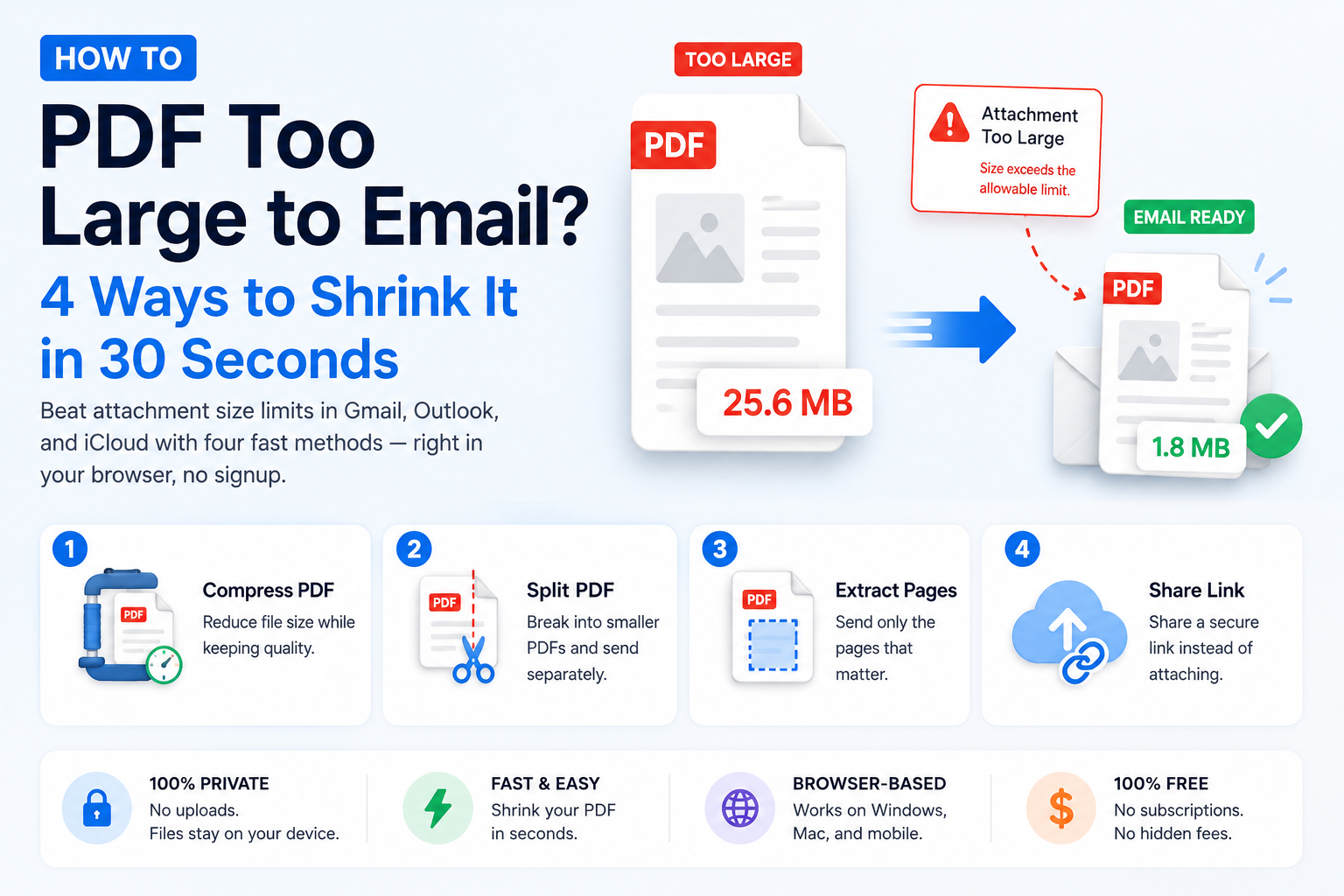
- Read next: PDF Too Large to Email? 4 Ways to Shrink It in 30 Seconds — the guide covering all four fixes when the file (or the extract) is still too big to send.
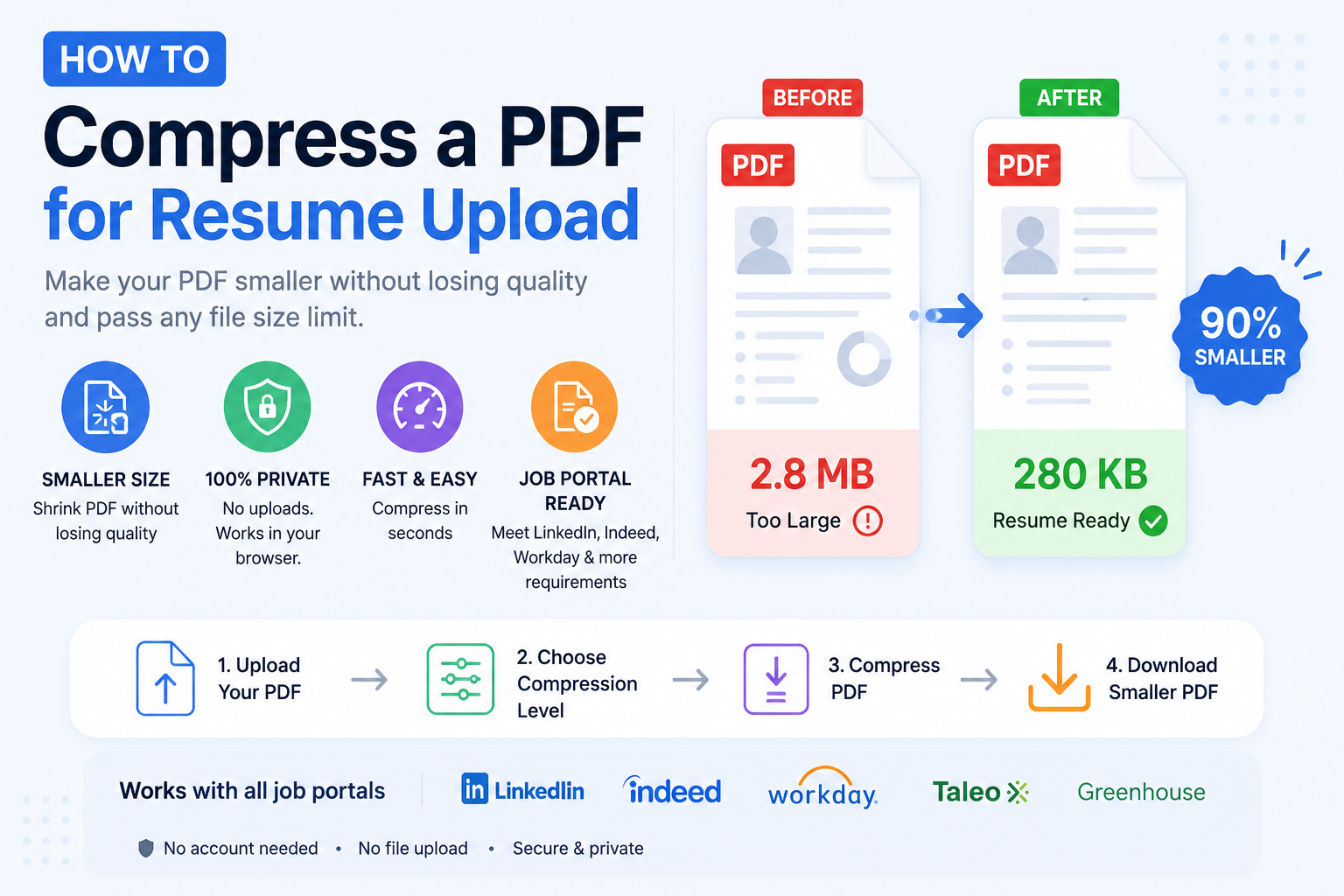
- Read next: How to Compress a PDF for Resume Upload — pairs beautifully with extracting only the resume page from an application pack.
- Go deeper: Best AI Tools for Small Businesses — if you handle PDFs daily for a small business, this covers the wider stack most SMBs use alongside the free file tools.
FAQs
Open a browser-based tool like ToolWayAI's Extract PDF Pages, drop your PDF in, click the page you want, and download it. The whole process takes about 15 seconds.
No. Extraction creates a new PDF containing only the pages you selected. The original file stays exactly as it was.
Extracting gives you one new PDF with the specific pages you chose. Splitting gives you multiple new PDFs, each containing a chunk of the original. Use extract for 'I only want page 12'; use split for 'break this into chapters'.
Yes. Select page 3, page 7, and page 12 — the extraction combines them into a single new PDF, in the order you selected.
Yes. Signatures live inside individual pages, so extraction preserves them exactly. A signed page extracted from a signed contract is still validly signed.
Yes. The extracted page is still an image of the scan — nothing about extraction requires OCR. If you need the text searchable, run OCR before extracting.
It depends on the tool. Any extractor that uploads your file to a server carries privacy risk. Use a browser-based tool that processes locally.
Most tools require you to unlock the file first. Save an unlocked copy, extract the page you need, then re-lock the original if you want to preserve its protection.
Very large PDFs (500 MB+) can strain browser memory on older devices. Use Split PDF to break it into smaller pieces first, or open on a more powerful device.
Not from a reputable tool. Free extractors that add watermarks are usually trying to sell you a 'pro' upgrade. ToolWayAI's extractor does not add watermarks.
Yes. Browser-based PDF tools work in mobile Safari and Chrome. The interface is a little smaller, but the extraction is identical.
It reduces the file size dramatically (one page is much smaller than 40), but doesn't compress the content of the page. If the single page is still too large, run it through Compress PDF.
A screenshot creates an image of the page (no selectable text, no working hyperlinks). Extraction creates a real PDF page that keeps the original's structure and searchability. For sending documents, always extract.
Yes. Type 5-8 (or select pages 5, 6, 7, 8) in the tool. The extraction produces one new PDF containing exactly those four pages in order.