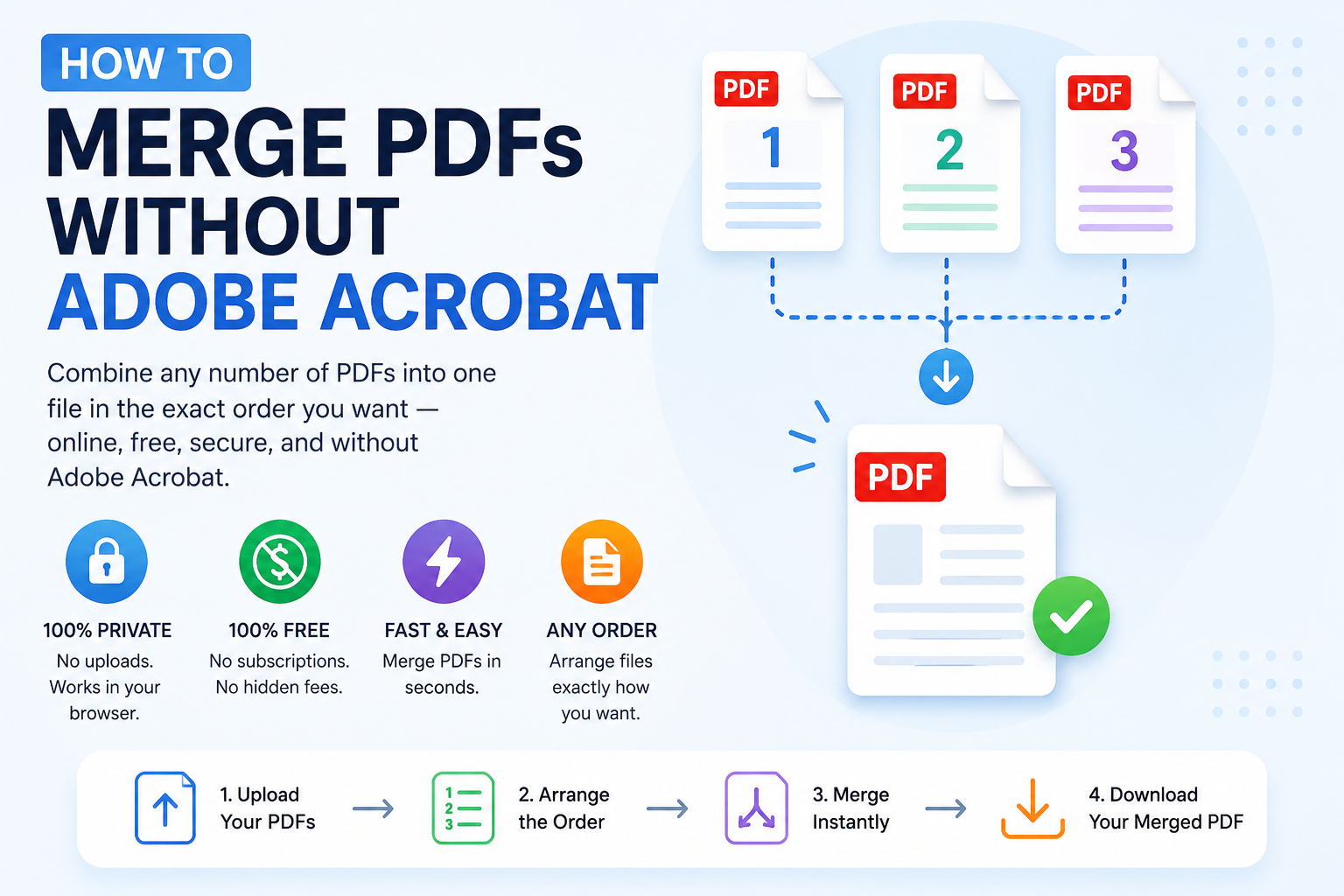
You've got three PDFs to combine into one — a signed contract, a scope document, and an invoice — and you'd like to send them as a single tidy file. But Adobe Acrobat Pro costs about $20 a month, the free Adobe Reader can't merge, and the last "free merge" website you tried demanded your email address before it would give you the file back.
You don't need Adobe. You don't need a subscription. You don't need to hand your documents to a stranger. Merging PDFs is one of the most solved problems in software, and modern browsers can do it just as well as Acrobat did fifteen years ago — instantly, for free, without uploading anything to a server.
This guide covers the fastest way to merge PDFs today, the Acrobat features you actually lose (spoiler: almost none for a merge), and the small mistakes that make merged PDFs look sloppy.
If you already know what you want to merge:
- Open ToolWayAI's free Merge PDF tool.
- Drag every PDF you want to combine onto the page — as many as you need.
- Drag the files up or down to set the final page order, then click Merge & Download.
- Everything runs inside your browser. Your PDFs are never uploaded to a server, which matters when you're merging contracts, invoices, or medical records.
That's the whole flow. Keep reading if you want to understand why Acrobat isn't necessary, what features you might miss, and how to keep the merged file small and professional.
- Need a quick fix? Try the tool
- Why people still think they need Adobe Acrobat
- What "merging PDFs" actually does
- Who needs to merge PDFs (and when)
- Step-by-step: merge PDFs in your browser
- Real-world merge scenarios
- The Acrobat features you actually lose (and don't)
- Common merge mistakes
- Best practices for professional merged PDFs
- Myths vs. facts about merging PDFs
- The pre-send checklist
- Frequently asked questions
- Why ToolWayAI for this
- Summary
- Continue learning
Adobe Acrobat has been the default PDF tool for so long that "merge PDFs" and "Acrobat" are welded together in most people's heads. That was a fair assumption in 2010. In 2026 it isn't, for three reasons:
- The PDF format is a public standard (ISO 32000). Any software vendor can read, write, and combine PDFs without paying Adobe a licence fee. That includes modern browsers, which now bundle enough PDF handling to merge files entirely locally.
- Acrobat Pro's paid features are mostly around editing, redaction, e-signatures, and OCR — not merging. Merging is a basic operation Acrobat groups into the Pro tier alongside things you probably don't need.
- Cloud-based "merge PDF" websites often trade privacy for convenience. Many upload your file to a server, hold it for 24 hours, and add themselves to your email list on the way out.
The rational middle path: use a tool that runs in your browser, doesn't upload the file, and doesn't ask you to sign up.
Merging is the simplest PDF operation. It takes two or more PDF files and concatenates their pages into a new PDF, in the order you specify. Nothing about the content of each page changes.
Here's what a merge does — and does not — touch:
| Kept intact | Not modified | Not created |
|---|---|---|
| Every page's layout, fonts, and images | Text content | New page numbers |
| Selectable, searchable text | Signatures | A new table of contents |
| Form fields (if the source PDFs contain any) | Bookmarks (usually kept, sometimes merged) | Cross-references between files |
| Hyperlinks inside each page | Metadata of the original files (author, title) | A unified "chapter" outline |
If you need to add a running page-number footer, refresh a table of contents, or renumber section titles after merging, that's a separate step in a PDF editor. For 95% of merges (contracts, invoices, scans, statements), you never need those.
If you handle documents at work, this task probably shows up more than you realise. Common cases:
- Freelancers and consultants — combining an invoice, a signed statement of work, and an expense summary into one deliverable per client per month.
- Job seekers — merging a cover letter and resume for portals that only allow one PDF upload.
- Property renters and buyers — bundling ID scans, bank statements, salary slips, and reference letters into one file for a landlord or mortgage broker.
- Small business owners — putting together a supplier onboarding pack (NDA + W-9/W-8 + service agreement + first invoice).
- Students — combining assignment cover pages, plagiarism reports, and appendices into one submission file for Turnitin or Canvas.
- Accountants — merging monthly bank statements into one quarterly PDF for the finance team.
- HR teams — building offer packs with contracts, benefits summaries, and onboarding docs.
- Doctors and clinics — combining scanned test results with prescription notes for referrals.
- Government applicants — visa portals, income tax uploads, and court filings often demand a single-PDF submission of what should be many files.
If you're one of the above, merging happens once a week or more. It's worth doing it well the first time.
- Open the merger. Go to Merge PDF. No download, no signup.
- Add your files. Drag them all onto the page, or click to browse. You can add as many as you like, and you can add more after the initial batch.
- Set the order. Drag files up or down. The final PDF pages will follow this exact order.
- Optionally rename the output. The default is fine, but a descriptive name like
Onboarding-Pack-ACME-2026.pdfis friendlier for the recipient. - Click Merge & Download. The tool builds the combined PDF entirely on your device and prompts a download.
- Open the merged file. Scroll through every page. Make sure the order is right, no page is missing, and nothing looks distorted.
- Send it. If your merged file exceeds an email limit, run it through Compress PDF next.
The whole flow — even for 20+ files — is usually under a minute.
Scenario 1 — Landlord asks for "one PDF" of your rental application.
You have five separate files: passport scan, latest bank statement, employment letter, previous lease reference, and pay slips. Order them in the sequence the landlord asked for (usually ID first), merge, rename Firstname-Lastname-Rental-Application.pdf, then compress if the result is over 5 MB.
Scenario 2 — Combining a cover letter and resume for a strict job portal. Some portals (a lot of government careers pages) allow only one PDF upload. Merge cover letter first, then resume. Keep the total under 2 MB — if it's larger, compress after merging.
Scenario 3 — Freelancer's monthly client pack. Invoice + statement of work + a signed change order + expense receipts. Merge in that order (invoice at top so the client sees it first), then send. If the receipts include phone photos, compress before sending.
Scenario 4 — Accountant's quarterly bank statement bundle. Three months, each in a separate PDF. Merge in chronological order. If the merged file is over 20 MB, either Split by month and send two emails, or compress the merged file.
Scenario 5 — Student's final submission with plagiarism report attached. Assignment cover page first, then the essay itself, then the plagiarism report appendix. Merge in that specific order — instructors expect the cover page to be page 1.
Scenario 6 — Merging scanned pages from multiple scanner sessions. Each session became its own PDF. Order them by scan date, merge, then optionally OCR (if your workflow requires searchable text — most simple merges don't need this).
If you're switching away from Acrobat for merging, here's the honest scorecard.
Features you do NOT lose:
- Combining any number of PDFs into one.
- Setting the exact page order across files.
- Preserving selectable text and images.
- Preserving hyperlinks inside each page.
- Preserving form fields in each source PDF.
- Merging works whether files are 1 MB or 100 MB.
Features you DO give up (and how to replace them):
- Automatic bookmark merging. Acrobat can build a top-level bookmark for each source file. Free browser tools usually don't. Workaround: if you need bookmarks, add them once in a free reader like Preview (Mac) or a browser PDF viewer with a bookmark extension.
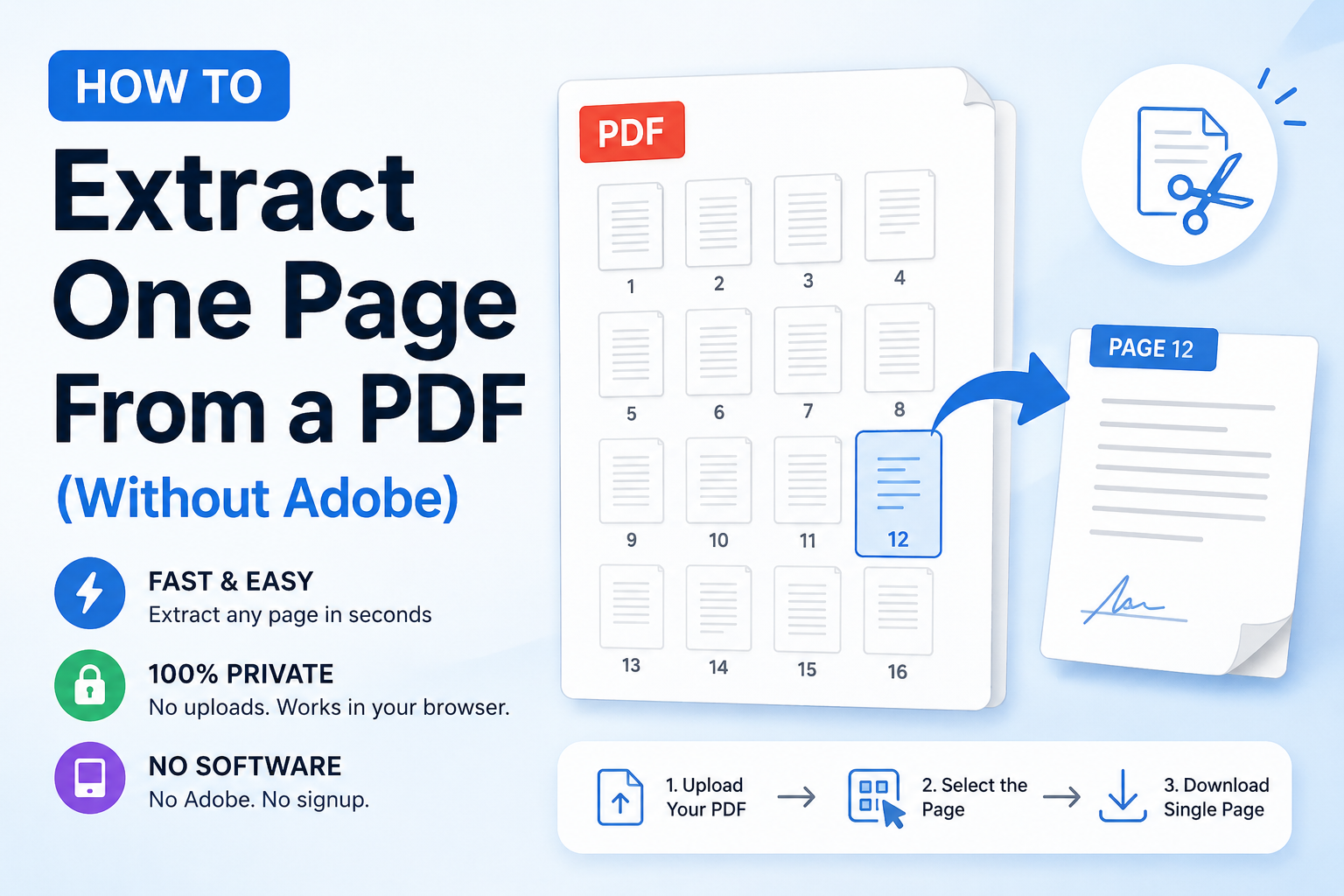
- In-line reordering of individual pages across files. Acrobat lets you drag pages between files inside a merge dialog. If you need this, first use Extract PDF Pages to split the file into individual pages, then merge in the exact order you want.
- OCR during merge. If your source PDFs are image scans without OCR, the merged file will still be image-only. If you need searchable text, run OCR on each source before merging (many free tools handle this; it's not part of a standard merge).
- Redaction, e-signature, form editing. These aren't merge features at all. They're separate Acrobat Pro modules.
For 95% of practical merges — invoices, scanned documents, application packs — none of the lost features actually matter.
- ❌ Wrong file order. The most common merge mistake. Always drag files into order before clicking merge, and scroll the merged output to verify.
- ❌ Merging low-quality scans without cleaning them first. A 40-page PDF made from 40 scanned images at 600 DPI can easily hit 100 MB. Compress the scans first, then merge.
- ❌ Assuming page numbers renumber automatically. They don't. If each source PDF has its own footer page numbers ("Page 1 of 3", etc.), those will still show after merging. Remove them in the source documents or use a PDF editor if consistent numbering matters.
- ❌ Merging password-protected PDFs. Most tools refuse. Unlock first, merge, then re-lock if needed.
- ❌ Uploading merged output to sketchy "compress" websites. If the merged file is too big, use a browser-based compressor. Never upload a merged personal document (with ID scans, bank statements, or contracts) to a server you don't trust.
- ❌ Merging then splitting again as a workaround. If you find yourself doing that regularly, you probably want Extract PDF Pages instead of merge + split.
- ❌ Forgetting to rename.
merged.pdfin a recipient's inbox looks unprofessional. Take three seconds.
- Order matters. Cover letter before resume. Invoice before receipts. ID scan before proof of address. Follow the convention your recipient expects.
- Rename the output with a clear, dated filename:
2026-01-Client-Onboarding-Pack.pdfbeatsUntitled.pdf. - Verify the merged file by scrolling every page. Look for missing pages, weird rotations (a portrait page inside a landscape merge), or blank pages between files.
- Compress after merging if the total exceeds your recipient's likely inbox limit — under 10 MB is a safe target for email, under 5 MB for job portals.
- Keep the source files until you've confirmed the merged file is fine. Don't delete originals until you're sure the merged version is complete and correct.
- For confidential documents, merge locally. Any merge that involves ID, medical, financial, or legal information should never happen on a website that uploads your file to a server.
| Myth | Fact |
|---|---|
| "You need Adobe Acrobat to merge PDFs." | You don't. Merging is a public-standard operation any modern browser can do locally. |
| "Free merge websites are the same as paid tools." | Only if they process locally. Many upload your file to a server; that's a privacy trade-off, not a feature. |
| "Merging compresses the files." | It doesn't. The merged file is roughly the sum of the source file sizes (plus a tiny bit of overhead). Compress separately if size matters. |
| "Merging changes the text quality." | It doesn't. Pages are copied byte-for-byte. Text, images, and layout are preserved exactly. |
| "You can merge Word documents and PDFs directly." | Not in a browser merge tool. Convert each Word file to PDF first, then merge. |
| "Merged PDFs can't be edited later." | They can. Any PDF editor can still open the merged file. Merging doesn't lock or flatten anything. |
| "Merging is illegal for signed contracts." | It isn't. Merging preserves the signature intact within its original page. Merging never modifies the signed page's content. |
Before you email the merged PDF or upload it:
- Files were dragged into the correct order before clicking merge
- You've scrolled the merged file end-to-end
- No blank pages between source files (some old PDFs leave one behind)
- Page rotations are consistent (no accidental landscape page mid-portrait)
- Filename is descriptive:
Firstname-Lastname-Purpose-Date.pdf - File size is under the recipient's likely limit (under 10 MB for email, under 5 MB for job portals)
- Confidential information is still legible but the file is compressed if it needs to be
- Source files are still saved locally in case you need to re-merge
Yes. Merging is a basic operation that any modern browser can do. Free browser-based tools like ToolWayAI's Merge PDF combine files locally on your device — no Adobe subscription, no server upload.
It depends on the tool. Any merger that uploads your file to a server carries privacy risk, especially for contracts, IDs, or medical records. Choose a tool that processes locally in your browser so the files never leave your computer.
There's no fixed number for browser-based tools — you're limited only by your device's memory. In practice, merging 50 files under 5 MB each works smoothly on any recent laptop.
No. The merged file is roughly the sum of the sources. If you need a smaller output, run the merged file through Compress PDF after merging.
Most tools require you to unlock the files first. Save an unlocked copy of each PDF, merge them, then re-add the password to the merged output if needed.
Yes. Signatures live inside individual pages, and merging copies those pages byte-for-byte. Digitally signed pages remain valid and cryptographically intact after a merge.
Hyperlinks inside each source page remain clickable in the merged file. Cross-file references (a hyperlink from file A pointing to file B) are the only kind that will not automatically update.
Not from inside the merged file directly — but you can go back to your source files, reorder them, and merge again in a few seconds. That's why we recommend keeping originals until you've verified the merged output.
Practical limits depend on your device, not the tool. Merging files totalling several hundred MB works fine on most laptops. Very old machines may struggle with 1 GB+ merges — in that case, split the work into two smaller merges.
Yes. Browser-based PDF tools work on mobile Safari and Chrome. The user interface is a little more finicky (drag-and-drop is easier on desktop), but the merge itself works identically.
Good ones don't. ToolWayAI's Merge PDF doesn't add watermarks, banners, or any modification to your file. Watermarks are a monetisation pattern — free tools that add them are trying to sell you a "pro" upgrade.
That's not a merge feature — it's a separate operation. If you really need bookmarks in the merged file, add them once in a free PDF reader (Preview on Mac, or a browser PDF viewer with bookmark support). For most professional merges (invoices, application packs), bookmarks aren't necessary.
Not in a single step from a PDF-only tool. Convert your images to PDF first (many free image tools do this in a click), then merge all the PDFs together.
A word on the tool we recommend for merging, so you know why we point people there:
- Runs entirely in your browser. The merge happens on your device. Your PDFs are never uploaded to a server, which matters for contracts, IDs, bank statements, and anything else you'd never leave on a shared computer.
- Free with no account. No signup, no email address, no watermark on the merged output.
- No installation. Works on any modern browser, desktop or mobile.
- Handles any number of files. No artificial "merge up to 3 files" cap that you have to pay to remove.
- Drag-and-drop reordering. You always know exactly what page order the final file will have — before you click.
- Plays well with the other free tools. After merging, you can send the file to Compress PDF or Split PDF without leaving the site.
We built the free tools because "merge two PDFs" shouldn't require a monthly subscription in 2026.
- You don't need Adobe Acrobat to merge PDFs. Every modern browser can do it locally.
- The safest, fastest way is a browser-based tool that never uploads your files to a server — Merge PDF does this in one drag-and-drop.
- Order the files before merging. Rename the output. Preview every page.
- If the merged file is too large for email or a portal, compress it — merging doesn't change size.
- For confidential documents (IDs, contracts, medical records), always merge locally, never on a website that uploads.
Bookmark the tool. The next time a landlord, portal, or client asks for "one PDF", you'll have it ready in a minute.
- Try next: Compress PDF — the natural companion. Most merged files benefit from a quick compression pass before email.
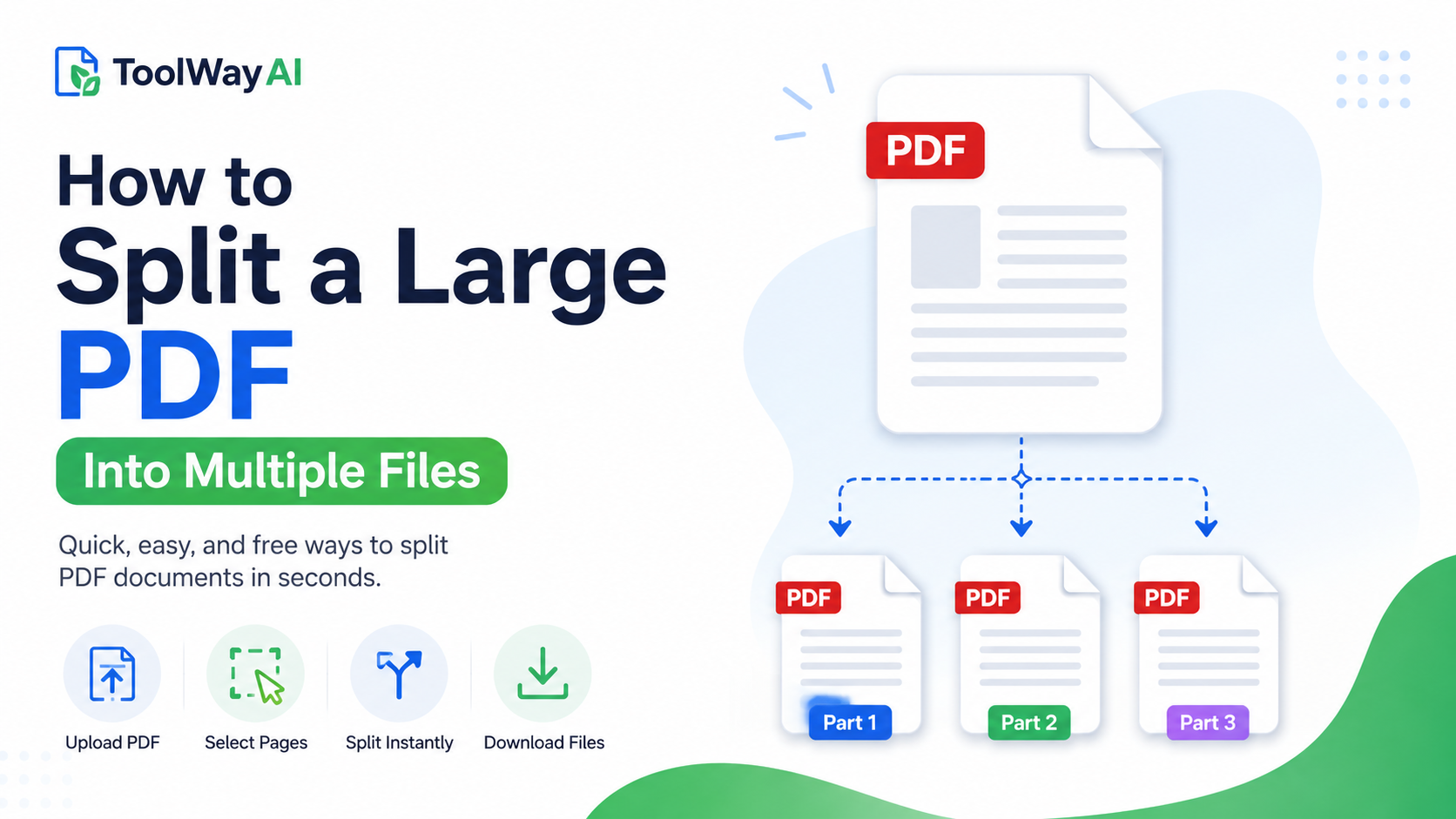
- Try next: Split PDF — the inverse operation. Useful when you've merged too much and need to send only part of the result.
- Read next: How to Compress a PDF for Resume Upload (LinkedIn, Indeed, Workday) — when your merged cover-letter-plus-resume package needs to fit under a job portal's limit.
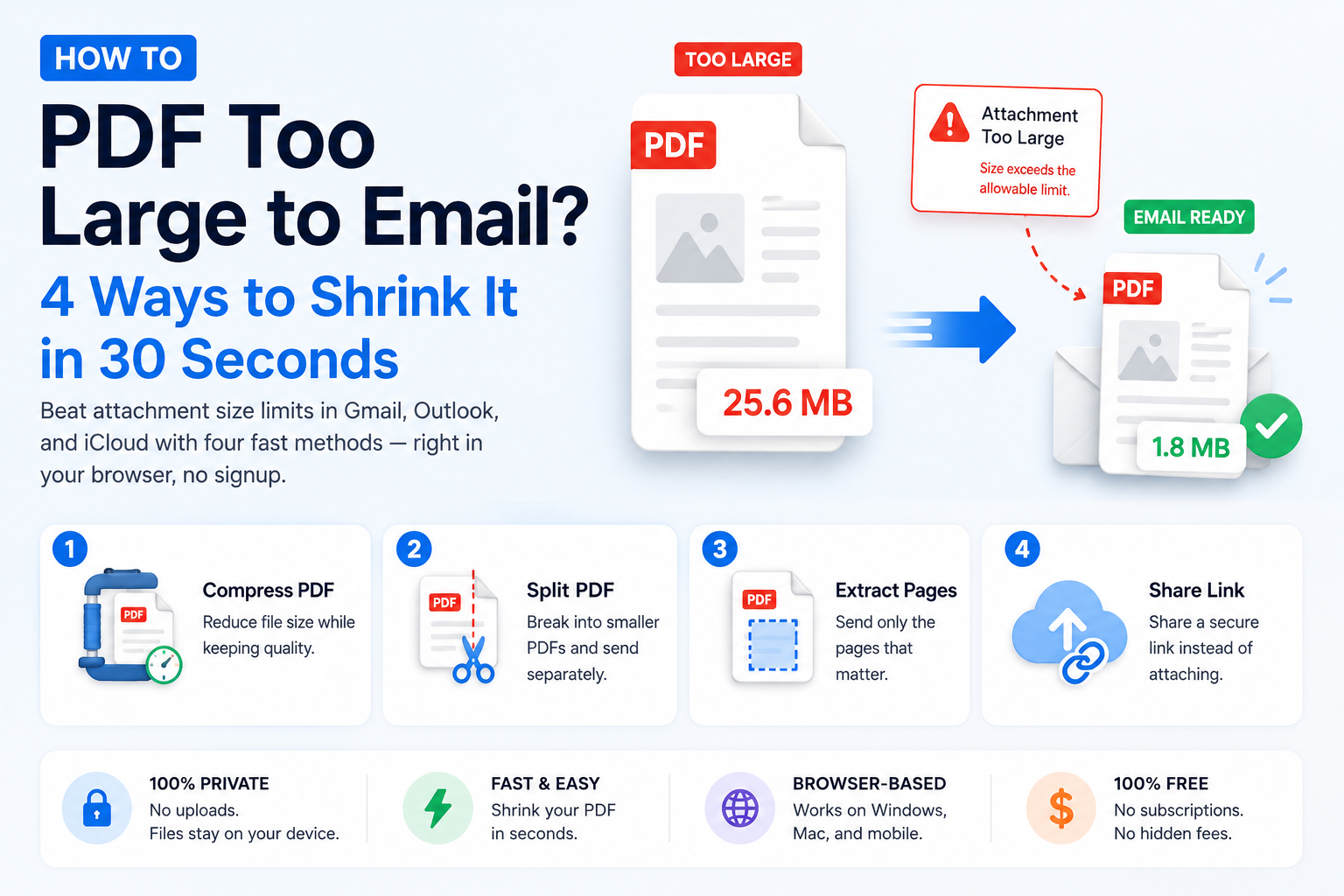
- Read next: PDF Too Large to Email? 4 Ways to Shrink It in 30 Seconds — the sister guide covering the four ways to fix an oversized PDF, including the merged one you just built.
- Go deeper: Best AI Tools for Small Businesses — if you handle PDFs daily for a small business, this covers the wider tool stack most SMBs pair with our free file tools.
FAQs
Yes. Merging is a basic operation that any modern browser can do. Free browser-based tools like ToolWayAI's Merge PDF combine files locally on your device — no Adobe subscription, no server upload.
It depends on the tool. Any merger that uploads your file to a server carries privacy risk, especially for contracts, IDs, or medical records. Choose a tool that processes locally in your browser.
There's no fixed number for browser-based tools — you're limited only by your device's memory. Merging 50 files under 5 MB each works smoothly on any recent laptop.
No. The merged file is roughly the sum of the sources. If you need a smaller output, run the merged file through Compress PDF after merging.
Most tools require you to unlock the files first. Save an unlocked copy of each PDF, merge them, then re-add the password to the merged output if needed.
Yes. Signatures live inside individual pages, and merging copies those pages byte-for-byte. Digitally signed pages remain valid and cryptographically intact.
Hyperlinks inside each source page remain clickable. Cross-file references (a link from file A pointing to file B) are the only kind that will not automatically update.
Not inside the merged file directly. Reorder the source files and merge again — it takes seconds. That's why we recommend keeping originals until you've verified the output.
Practical limits depend on your device, not the tool. Merging files totalling several hundred MB works fine on most laptops. Very old machines may struggle with 1 GB+ merges.
Yes. Browser-based PDF tools work on mobile Safari and Chrome. Drag-and-drop is easier on desktop, but the merge itself works identically on mobile.
Good ones don't. ToolWayAI's Merge PDF doesn't add watermarks, banners, or any modification to the file. Watermarks are usually a monetisation pattern.
That's a separate operation, not a merge feature. Add bookmarks in a free PDF reader if needed. For most professional merges (invoices, application packs), bookmarks aren't necessary.
Not in a single step from a PDF-only tool. Convert your images to PDF first, then merge all the PDFs together.